

What Is Computer Hardware?
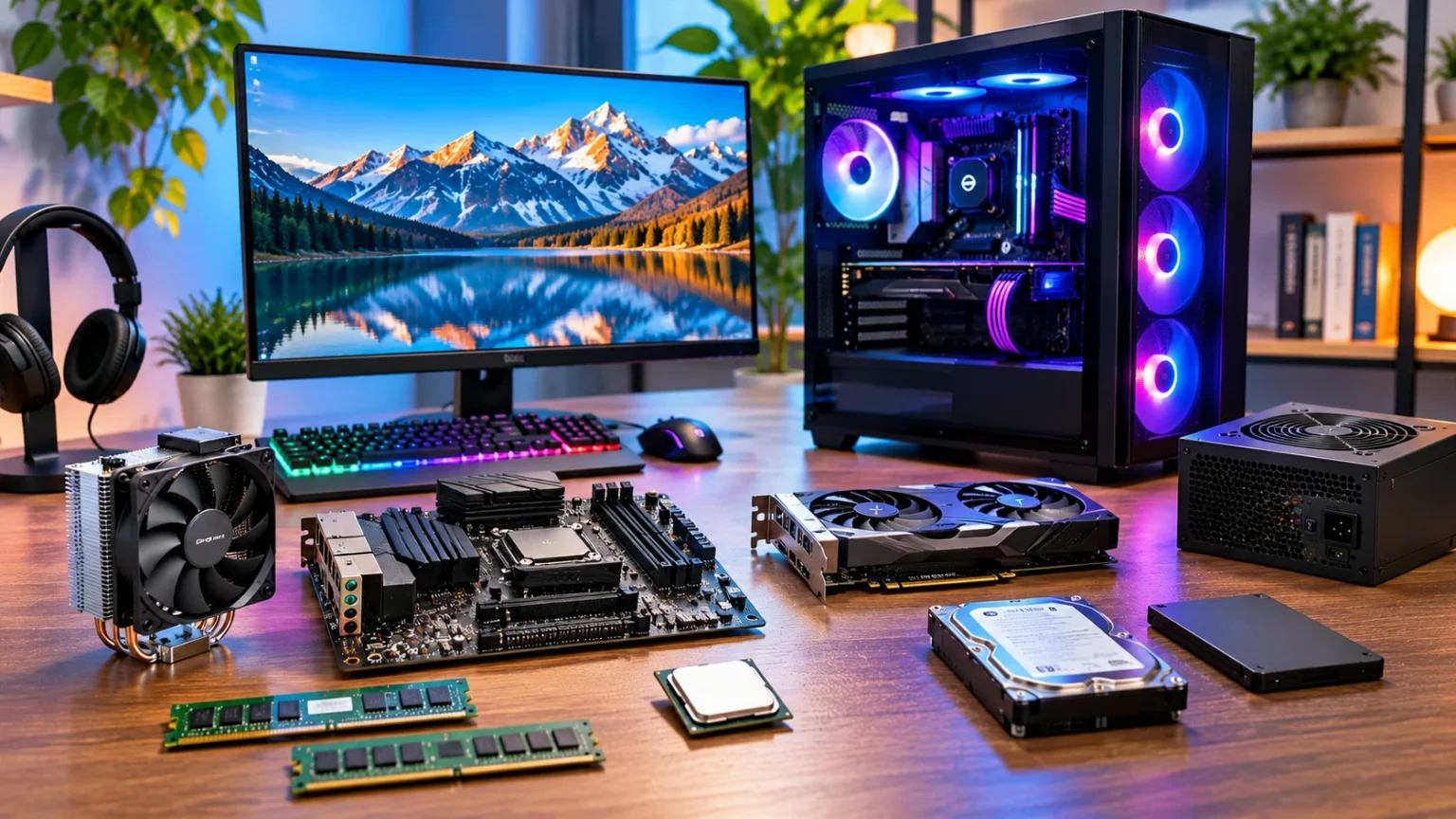
Computer hardware refers to the physical components of a computer system that you can see and touch. These components work together to process information, store data, and perform different computing tasks. Common examples include the motherboard, processor, memory, keyboard, monitor, and storage drive. Understanding the computer hardware definition helps beginners recognize how computers operate and what makes modern digital technology possible.
Every computer depends on hardware to perform basic and advanced functions. Whether you use a desktop computer, laptop, tablet, or server, physical components handle instructions and process information. Some parts are located inside the computer case, while others connect externally. Together, these devices create a complete system that supports communication, entertainment, education, and professional work.
Computer hardware works alongside software, which provides the instructions needed to complete tasks. For example, when you open a document, software tells the processor what operations to perform. The hardware then processes the instructions and displays the results on your screen. Both hardware and software are essential because neither can provide a complete computing experience independently.
Understanding the Main Types of Computer Hardware
Computer hardware is commonly divided into several categories based on its functions. These include input devices, output devices, processing components, storage devices, and communication hardware. Each category performs a different role in the computer system. Understanding these classifications makes it easier to identify individual components and recognize how they contribute to everyday computing activities.
Input devices allow users to send information and commands to computers. Keyboards, mice, microphones, and scanners are familiar examples that support different interactions. Output devices present processed information through screens, speakers, and printers. These components create a connection between users and digital systems by allowing information to move into and out of the computer.
Processing hardware performs calculations and manages instructions, while memory and storage components handle information at different stages. Communication devices allow computers to exchange data through networks and wireless connections. Some modern components perform more than one function. For example, a touchscreen can receive input while also displaying visual information to the user.
What Is a Motherboard and Why Is It Important?
The motherboard is the main circuit board that connects essential computer components. It provides connections for the processor, memory modules, storage devices, graphics hardware, and other internal parts. Electrical pathways allow these components to communicate with one another. Without a compatible motherboard, the individual hardware components cannot operate together as a complete computer system.
Modern motherboards include processor sockets, memory slots, expansion connections, and interfaces for storage devices. They also contain supporting electronic components that help manage communication and power delivery. Different motherboard designs support different processors and hardware standards. Selecting a compatible motherboard is therefore important when building or upgrading a desktop computer.
The motherboard also influences future expansion options and connectivity features. Some models provide additional memory slots, faster storage connections, and more USB ports. Others include built-in wireless networking or specialized features for demanding applications. Understanding motherboard specifications helps users choose systems that match their performance requirements and potential upgrade plans.
Central Processing Unit (CPU): The Brain of a Computer
The central processing unit, commonly called the CPU, is responsible for executing many of a computer’s instructions. It performs calculations, processes data, and coordinates operations requested by software. This essential component is often described as the brain of a computer. Its performance influences how quickly applications respond and how efficiently tasks are completed.
Modern processors contain multiple cores that can execute instructions and support several tasks simultaneously. They also include cache memory, which provides rapid access to frequently needed information. Processor speed is commonly measured in gigahertz, although clock speed alone does not determine overall performance. Architecture, core count, efficiency, and workload characteristics also influence computing results.
Different computers use processors designed for their particular requirements. Laptop processors often emphasize power efficiency, while desktop and workstation models may prioritize higher performance. Servers use processors designed for demanding workloads and continuous operation. Choosing an appropriate CPU depends on applications, budget, energy consumption, and compatibility with the computer’s motherboard.
Random Access Memory (RAM) and Its Functions
Random access memory, or RAM, temporarily stores information that the computer is actively using. It allows the processor to access working data much faster than most permanent storage devices. When you open applications or switch between tasks, RAM helps keep the necessary information readily available. This makes it an important component of everyday computer performance.
RAM is considered volatile memory because its contents are normally lost when power is removed. Unlike an SSD or hard drive, it is not intended for permanent file storage. Instead, it supports active programs, operating system processes, and temporary information. Having sufficient RAM helps computers handle several applications without frequently moving data to slower storage.
The amount of RAM needed depends on how a computer is used. Basic browsing and office tasks generally require fewer resources than demanding creative applications or virtual machines. Modern computers commonly use DDR memory technologies, with specific generations supported by compatible hardware. When upgrading RAM, users should check memory type, capacity limits, and motherboard compatibility.
Storage Devices: HDDs, SSDs, and External Drives
Storage devices preserve files, applications, and operating system information even when the computer is turned off. Common storage hardware includes hard disk drives, solid-state drives, USB flash drives, and external storage devices. These components provide long-term space for documents, photos, videos, and software. Their performance and capacity influence how users store and access digital information.
Hard disk drives, commonly called HDDs, use rotating magnetic disks to store information. They often provide large storage capacities at relatively affordable prices. Solid-state drives, or SSDs, use flash memory without mechanical moving parts. SSDs generally offer faster access times, making them popular for operating systems, applications, and frequently accessed files.
External drives provide additional storage that can be connected through interfaces such as USB. They are useful for transferring large files and maintaining backup copies. Storage devices also differ in durability, portability, speed, and cost. Choosing the right option depends on whether a user prioritizes performance, capacity, convenience, or long-term data protection.
Graphics Processing Unit (GPU) and Display Performance
A graphics processing unit, commonly known as a GPU, handles many operations involved in producing images and visual effects. It processes graphics-related calculations and helps display content on monitors. GPUs are especially important for video games, digital design, animation, and visual computing. They can also accelerate certain scientific calculations and artificial intelligence workloads.
Some computers use integrated graphics processors built into the main processor or another system component. These solutions share system resources and are often sufficient for everyday tasks. Dedicated graphics cards contain specialized hardware and typically use their own video memory. They are designed to support more demanding graphical applications and higher performance requirements.
GPU performance depends on several factors, including architecture, processing capabilities, memory, and power limits. A powerful graphics card can improve suitable gaming, rendering, and professional workloads. However, not every computer needs dedicated graphics hardware. Users should compare their actual software requirements before selecting expensive components or upgrading an existing graphics system.
Input Devices and Their Everyday Examples
Input devices allow people to communicate with computers by providing commands and information. Keyboards and mice are among the most familiar examples in desktop computing. Keyboards support text entry and shortcuts, while mice control on-screen pointers and selections. These devices make software easier to navigate and support productive interaction with digital applications.
Other common input hardware includes microphones, webcams, scanners, and touchpads. Microphones convert sound into electrical signals that computers can process digitally. Webcams capture images and video, while scanners convert physical documents into digital information. Touchpads provide pointer control on laptops without requiring a separate mouse or external pointing device.
Modern input technology also includes touchscreens, game controllers, drawing tablets, and biometric sensors. These devices support different needs, from digital artwork to accessibility and device authentication. Some input hardware combines multiple methods of interaction. Understanding these examples shows how computer hardware continues to make digital systems more flexible and convenient.
Output Devices and How They Work
Output devices present information that has been processed by a computer. Monitors, printers, speakers, and projectors are common examples of output hardware. Each device communicates information in a different format, such as images, printed documents, or sound. These components help users understand the results of computer operations and interact with digital content.
Monitors display text, graphics, videos, and software interfaces through electronic display technology. Their specifications include screen size, resolution, refresh rate, and panel type. Speakers convert electrical audio signals into sound that people can hear. Printers produce physical copies of digital documents and images using technologies such as inkjet or laser printing.
Projectors display computer-generated images on larger surfaces, making them useful for classrooms and presentations. Other specialized output devices include accessibility equipment and certain industrial displays. Choosing suitable output hardware depends on intended use, connectivity, and quality requirements. These devices are essential because processed information becomes more useful when people can see, hear, or otherwise receive it.
Power Supply Units and Computer Cooling Systems
The power supply unit, or PSU, converts incoming electrical power into the regulated voltages required by computer components. Desktop computers commonly use internal power supplies connected to the motherboard and other hardware. Reliable power delivery is important for stable system operation. A suitable PSU must provide enough capacity for the installed components and expected workload.
Computer components generate heat while operating, particularly processors and graphics hardware. Cooling systems help remove this heat and maintain safe operating temperatures. Common cooling components include fans, heat sinks, thermal interface materials, and liquid cooling systems. Their effectiveness depends on component design, airflow, environmental conditions, and the amount of heat produced.
Poor cooling can cause performance reductions, system instability, or premature hardware problems. Computers may automatically reduce processing speed when temperatures become excessive. Proper ventilation and regular removal of accumulated dust can help maintain cooling performance. Users should also ensure that cooling equipment is compatible with the computer’s design and operating requirements.
Network and Communication Hardware
Communication hardware allows computers to exchange information with other devices and networks. Common examples include network interface cards, wireless adapters, routers, and modems. These components support internet access, local file sharing, and communication between connected systems. Their functions are important in homes, schools, offices, and large business environments.
A network interface card provides a connection between a computer and a network. Wired connections commonly use Ethernet, while wireless adapters support Wi-Fi communication. Routers direct data between networks, and modems connect to particular internet service technologies. Some modern networking devices combine several functions within a single piece of equipment.
Network performance depends on hardware capabilities, connection quality, network traffic, and service limitations. Faster adapters cannot guarantee better internet speeds when other parts of the connection are slower. Security features and compatibility also matter when selecting networking hardware. Understanding these components helps users troubleshoot connections and build reliable communication systems.
Internal vs External Computer Hardware
Internal hardware refers to components installed inside the computer’s main enclosure. Examples include the CPU, motherboard, RAM, internal storage drives, and power supply. These parts perform essential operations that support the computer’s functionality. Some internal components can be replaced or upgraded, while others may be permanently integrated into compact devices.
External hardware includes devices connected outside the computer’s main enclosure. Examples include keyboards, monitors, external drives, printers, and speakers. These devices extend the computer’s capabilities and improve user interaction. External components commonly connect through USB, HDMI, audio ports, Bluetooth, or other supported interfaces and communication technologies.
The distinction between internal and external hardware mainly concerns physical location and connection methods. Both categories contribute to the overall computer experience. Internal parts often determine fundamental performance, while external devices expand functionality and convenience. Understanding their differences can make hardware purchasing, troubleshooting, and maintenance decisions easier for beginners.
Computer Hardware vs Software: Key Differences
Computer hardware consists of the physical electronic and mechanical components that form a computing system. Software consists of programs, instructions, and related data that direct hardware operations. For example, a keyboard is hardware, while a word-processing application is software. Both work together to help users create documents, browse websites, and complete digital tasks.
Hardware and software also differ in how they are maintained or upgraded. A faulty physical component may require repair or replacement. Software problems can often be resolved through updates, configuration changes, or reinstallation. However, some hardware problems may also involve firmware, drivers, or compatibility issues that require careful diagnosis.
A computer cannot provide meaningful general-purpose functionality without suitable instructions, and software needs hardware to execute those instructions. Operating systems coordinate resources and allow applications to communicate with physical devices. Device drivers provide important connections between software and particular components. This relationship explains why understanding both hardware and software is useful when learning computer fundamentals.
How to Choose the Right Computer Hardware
Choosing computer hardware begins with identifying the tasks the system must perform. Basic office work, online learning, gaming, video editing, and programming can have different requirements. Users should consider processing performance, memory capacity, storage speed, and display needs. Selecting hardware according to actual workloads helps avoid unnecessary spending on features that offer little practical benefit.
Compatibility is another important consideration when purchasing individual components. Processors must match supported motherboard sockets, and memory modules must follow compatible specifications. Power requirements, physical dimensions, storage interfaces, and cooling arrangements also matter. Checking these details before purchasing can prevent installation problems and reduce the risk of unsuitable upgrades.
Budget, durability, energy efficiency, and future needs should also influence purchasing decisions. A balanced computer often performs better for its intended purpose than one with a single expensive component and several weak areas. Buyers should compare specifications and practical requirements. Planning carefully can extend the useful life of a computer and improve overall value.
Common Computer Hardware Problems and Maintenance Tips
Computer hardware can develop problems because of wear, heat, dust, physical damage, or electrical issues. Common warning signs include unexpected shutdowns, unusual noises, overheating, and devices that stop responding. Slow performance can also indicate hardware limitations, although software issues may produce similar symptoms. Identifying the actual cause is important before replacing components.
Regular maintenance helps keep computer systems working reliably. Users can clean external surfaces, keep ventilation openings clear, and check cables for visible damage. Software-based diagnostic tools can help monitor temperatures, storage health, and memory-related problems. Computers should be powered off and disconnected before appropriate physical cleaning, following manufacturer safety instructions.
Preventive care also includes maintaining backups and protecting equipment from unstable electrical conditions. Important files should be copied to reliable storage or supported backup services. Users should avoid forcing incompatible connections or attempting repairs beyond their knowledge. Recognizing hardware problems early can reduce downtime and help prevent avoidable damage.
Conclusion
Understanding the computer hardware definition is the first step toward learning how modern computers function. Hardware includes the physical parts responsible for processing, storing, displaying, and transferring information. Essential components such as processors, motherboards, memory, and storage devices work together to support daily computing. Each component contributes a specific function to the overall system.
Computer hardware includes both internal components and external devices. Input hardware allows users to provide commands, while output devices present processed information. Networking equipment supports communication, and cooling systems help maintain reliable operation. Recognizing these categories makes it easier to understand computer specifications, identify components, and troubleshoot common performance problems.
Whether you are buying a new computer, upgrading existing equipment, or learning technology basics, hardware knowledge is valuable. Understanding how different parts interact helps you make practical decisions about performance and compatibility. Proper maintenance can also improve reliability and extend equipment life. With these fundamentals, computer technology becomes easier to understand and use confidently.
Frequently Asked Questions
What Is the Simple Definition of Computer Hardware?
Computer hardware refers to the physical parts of a computer that can be seen and touched. These components perform processing, storage, input, output, and communication functions required for a computer to operate.
What Are Five Examples of Computer Hardware?
Five common examples of computer hardware are the processor, motherboard, RAM, hard drive, and keyboard. Each component performs a different function, helping the computer process information and support everyday activities.
What Are the Main Types of Computer Hardware?
The main types include input devices, output devices, processing hardware, storage devices, and communication equipment. These categories describe how computer components receive, process, store, and exchange information within digital systems.
What Is the Difference Between Hardware and Software?
Hardware includes physical computer components such as monitors, processors, and keyboards. Software consists of programs and instructions that tell hardware what to do, allowing computers to perform useful tasks.
Why Is Computer Hardware Important?
Computer hardware provides the physical foundation needed to run software and process digital information. Without functional hardware components, computers cannot perform calculations, store files, display results, or communicate with other devices.