
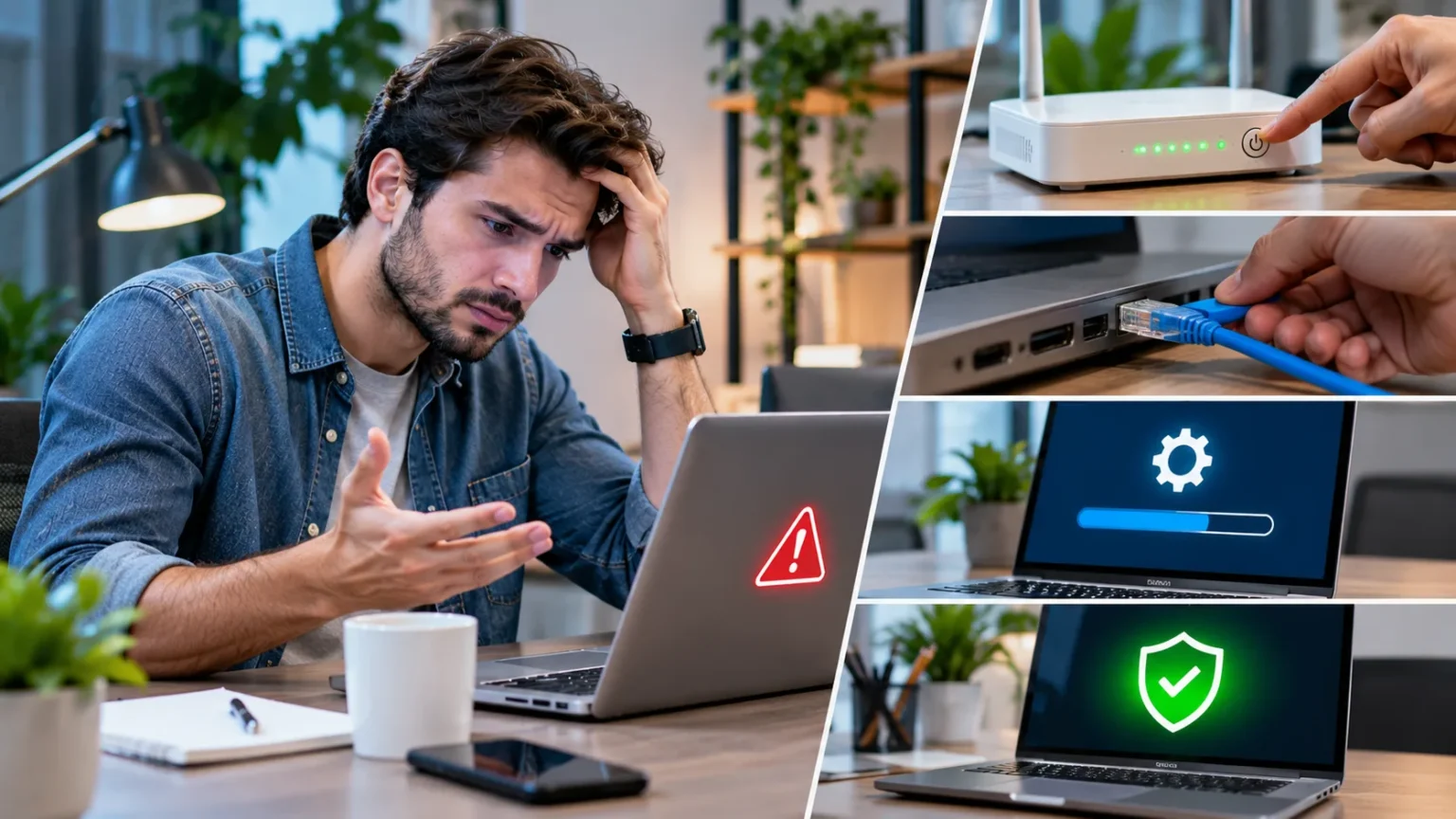

Technical issues can interrupt daily activities, reduce productivity, and make even simple digital tasks frustrating. Whether your computer stops responding, an application crashes, or your internet connection suddenly disappears, understanding the problem is the first step toward finding an effective solution. Fortunately, many common technology problems can be resolved without advanced technical knowledge.
Learning how to identify technical issues and apply useful fixes can save time, prevent unnecessary expenses, and improve device performance. This guide explores common hardware problems, software errors, network failures, and troubleshooting methods that can help you keep your technology running smoothly.
What Are Technical Issues and Why Do They Happen?
Technical issues are problems that prevent electronic devices, software applications, or digital systems from working as expected. They can affect computers, smartphones, websites, internet connections, and business technology infrastructure. Some issues cause minor inconvenience, while others interrupt essential operations, prevent access to important information, or make devices temporarily unusable until the underlying problem is resolved.
These problems develop for several reasons, including hardware failures, outdated software, incorrect settings, and unstable network connections. For example, a computer may freeze because an application consumes too much memory, while a website may become unavailable because its server is experiencing problems. Identifying the actual cause helps users avoid unnecessary repairs and choose more effective troubleshooting solutions.
Technical difficulties do not always indicate that a device is permanently damaged or needs replacement. Many everyday problems result from temporary software conflicts, overloaded systems, or incorrect configurations. Starting with simple checks, such as restarting a device or checking connections, can often restore normal operation without requiring expensive equipment, specialized tools, or professional technical support.
Common Hardware Problems and Their Solutions
Hardware problems occur when physical components fail, become damaged, or stop operating correctly. Common examples include malfunctioning keyboards, defective charging cables, overheating computers, and storage drive failures. These problems may cause devices to shut down unexpectedly, operate slowly, or stop responding, making it important to distinguish physical damage from software-related performance issues.
When investigating possible hardware failures, begin by checking external connections and visible signs of damage. Make sure cables are securely attached, power outlets work, and removable accessories are connected correctly. If an external device stops functioning, testing it with another compatible computer or cable may help determine whether the problem involves the accessory or the original system.
Overheating is another common hardware concern that can reduce performance and cause unexpected shutdowns. Keep ventilation openings clear, avoid blocking airflow, and place devices on suitable surfaces during operation. If equipment produces unusual noises, smells, or repeated shutdowns, stop using it and seek qualified assistance rather than attempting potentially unsafe internal repairs.
Software Errors and Application Crashes
Software problems often appear when applications freeze, close unexpectedly, or display error messages during normal use. These difficulties may result from programming bugs, corrupted files, missing updates, or conflicts between installed programs. Understanding when the issue started and which applications are affected can help identify whether the problem involves one program or the entire operating system.
A useful first step is to close the affected application and reopen it to check whether the problem continues. If the error remains, restart the device, install available updates from trusted sources, and review the application’s system requirements. These basic actions can resolve temporary conflicts and correct known software problems without changing important user information.
Sometimes an application continues crashing because its installation files or configuration settings are damaged. Reinstalling the program from its official source may help, but important files and settings should be backed up first. If several programs fail simultaneously, investigate the operating system, available memory, and recent system changes before assuming that every application requires replacement.
Internet Connectivity and Network Problems
Internet connectivity problems can interrupt video meetings, online learning, cloud applications, and everyday communication. Common symptoms include slow browsing, frequent disconnections, weak Wi-Fi signals, and websites that refuse to load. These issues may originate from the internet service provider, wireless router, connected device, or local network conditions, so identifying their source is essential.
Start troubleshooting by checking whether the internet problem affects one device or every device on the network. If several devices cannot connect, examine the router’s status indicators and check whether your service provider has reported an outage. Restarting the router according to the manufacturer’s instructions may resolve temporary connection problems, although widespread service interruptions require provider assistance.
When only one device experiences connectivity difficulties, check its Wi-Fi connection, network settings, and available software updates. Moving closer to the router may improve wireless signal strength, especially when thick walls or interference affect coverage. If the connection remains unreliable, testing a compatible wired connection can help determine whether the problem involves Wi-Fi or the broader network.
Slow Computer Performance and System Freezing
Slow performance is among the most common technical issues experienced by computer users. Devices may take longer to start, applications may respond slowly, and routine activities can become frustrating. These symptoms often develop when too many programs run simultaneously, available memory becomes limited, or background processes consume significant processing power and storage resources.
Begin by closing unnecessary applications and checking which programs are using the most system resources. Built-in performance monitoring tools can help identify unusually high CPU, memory, or disk activity. Restarting the computer also clears many temporary processes, allowing the operating system to begin a fresh session without applications left running from previous activities.
If performance remains poor, inspect available storage space and check for operating system updates. Removing unnecessary files and uninstalling unused applications can reduce clutter, provided important information is preserved. Older computers may benefit from compatible hardware upgrades, but it is worth identifying the actual performance bottleneck before spending money on additional memory or storage devices.
Understanding Error Messages and System Failures
Error messages provide useful clues about what went wrong, although their technical wording can be confusing. A message might indicate insufficient storage, missing permissions, failed connections, or unavailable system resources. Instead of immediately dismissing the warning, read the message carefully and identify whether it includes an error code, affected program, or recommended corrective action.
Recording the exact error message can make troubleshooting easier, particularly when the issue appears repeatedly. Note what you were doing before the problem occurred and whether it started after installing software or changing settings. Searching official product documentation for the error code can help identify known causes and recommended solutions without relying on questionable repair tools.
Some system errors require additional attention because they involve damaged operating system files or storage problems. Built-in diagnostic utilities may help identify these conditions, but major changes should be approached carefully. Before attempting recovery procedures, protect important documents through reliable backups and avoid instructions that require unfamiliar modifications to critical system settings.
Outdated Software and Compatibility Issues
Outdated software can cause performance problems, security weaknesses, and unexpected compatibility errors. Applications may stop working correctly when they rely on unsupported operating system versions or outdated components. Similarly, older device drivers may struggle to communicate with newer software, creating problems involving printers, displays, audio equipment, or other connected hardware.
Regular updates help address known bugs, improve compatibility, and introduce security improvements. Check for updates through the operating system’s built-in settings or the software developer’s official website. Before installing major upgrades, confirm that your device meets the requirements and that important applications remain compatible with the newer version being introduced.
Compatibility problems can also occur when two applications require conflicting settings or system components. If an issue begins immediately after an update, review the developer’s release notes and known issue announcements. Where supported, a documented rollback or compatibility setting may help, but avoid downloading unofficial replacement files that could introduce additional security or stability problems.
Technical Issues Caused by Malware and Security Threats
Malicious software can cause technical issues by interfering with applications, consuming system resources, or changing device settings. Warning signs may include unexpected pop-ups, unfamiliar programs, unusual browser behavior, and unexplained performance changes. However, these symptoms do not always confirm an infection because ordinary software bugs or misconfigured applications can sometimes produce similar results.
If you suspect a security problem, begin by running a scan with reputable, updated security software. Avoid opening suspicious attachments, clicking unexpected login requests, or installing programs from unknown websites. Keeping your operating system, browser, and applications updated helps reduce exposure to known vulnerabilities and improves protection against common digital threats.
Strong account security also helps prevent problems that extend beyond the physical device. Use unique passwords, enable multifactor authentication where available, and review unfamiliar account activity promptly. If a device appears compromised, avoid entering sensitive information until the situation has been assessed, and seek trusted technical support when ordinary security checks cannot resolve the concern.
Storage Problems, File Errors, and Data Recovery
Storage-related technical issues can prevent applications from saving information or cause devices to respond slowly. Common symptoms include low disk space warnings, unreadable files, failed downloads, and unexpected storage errors. These problems may result from insufficient capacity, corrupted files, damaged storage media, or software processes that cannot access the required storage location.
To address low storage space, review available capacity and identify files or applications that are no longer needed. Use built-in storage management tools to remove temporary files safely while preserving personal documents. Moving suitable files to trusted external storage or cloud services can create additional space, although you should confirm that backups are complete before deleting originals.
File corruption and storage failure require a more careful approach because repeated repair attempts may create additional risks. If important files become inaccessible, stop unnecessary write operations and preserve any existing backups. A failing drive may require professional data recovery, especially when unusual noises, repeated read errors, or disappearing storage devices suggest physical damage.
A Step-by-Step Approach to Troubleshooting Technical Issues
Effective technical troubleshooting begins with understanding the symptoms rather than immediately applying random fixes. Identify the affected device or application, note when the problem started, and determine whether it happens consistently. This information helps narrow the possible causes and prevents unnecessary changes that might complicate the issue or create additional problems.
Next, test the simplest explanations before attempting advanced repairs or configuration changes. Check power and network connections, restart the affected application or device, and review recent updates or installations. Make one change at a time and test the results so you can determine which action improves the situation and which possible causes remain unresolved.
If basic steps fail, use trusted diagnostic tools and official support information to investigate further. Keep a record of error messages, troubleshooting actions, and any changes to system behavior. This structured approach makes it easier to recognize recurring problems, reverse unsuccessful changes when possible, and provide useful information to technical support professionals.
When to Seek Professional Technical Support
Some technical issues require professional assistance because the underlying problem involves complex hardware, advanced software configuration, or sensitive information. Repeated system failures, suspected storage damage, and persistent security concerns are examples that deserve additional attention. Seeking support early can prevent unnecessary troubleshooting attempts and reduce the possibility of losing valuable data.
Before contacting technical support, gather essential information about the affected device and the symptoms you are experiencing. Include relevant error messages, software versions, and the troubleshooting steps already attempted. Providing clear information helps technicians understand the situation faster, identify possible causes, and recommend repairs or configuration changes appropriate to the equipment involved.
Choose reputable technicians, authorized service providers, or official product support channels whenever possible. Ask about potential costs, repair procedures, and whether your personal information will remain protected during service. For business systems, follow internal IT procedures rather than attempting unauthorized changes that could affect shared infrastructure, confidential information, or other employees.
How to Prevent Common Technical Problems
Preventing technical issues starts with regular maintenance and careful device management. Install trusted software updates, maintain sufficient storage capacity, and keep electronic equipment clean and properly ventilated. These simple habits help reduce avoidable interruptions while supporting system performance, application compatibility, and the long-term reliability of computers and other connected devices.
Creating reliable backups is another essential preventive measure because technical failures can happen without warning. Keep important files in secure locations and use automatic backup features when appropriate. Periodically confirm that stored information can be restored successfully, since a backup offers limited protection if the saved files are incomplete, inaccessible, or damaged.
Good digital habits also reduce the likelihood of recurring software and security problems. Download applications from trusted sources, avoid unnecessary system modifications, and review device performance occasionally. Combined with secure passwords, dependable network equipment, and timely professional assistance, these practices help individuals and businesses maintain a more stable and efficient technology environment.
Conclusion
Technical issues can affect almost every digital activity, from accessing the internet to operating essential business applications. Hardware failures, software conflicts, outdated programs, and network interruptions are among the most common causes. Understanding these problems makes it easier to identify warning signs and select practical solutions instead of relying on guesswork or unnecessary replacements.
Most everyday technical difficulties can be approached through simple troubleshooting steps, including checking connections, restarting devices, installing trusted updates, and reviewing error messages. More serious problems may require specialized tools or professional assistance. Protecting important data and avoiding risky repairs should remain priorities whenever troubleshooting involves unfamiliar settings or potentially failing equipment.
Regular maintenance, reliable backups, and responsible technology use can prevent many recurring technical problems. By developing basic troubleshooting skills, users can respond more confidently when devices or applications stop working correctly. Taking a careful, organized approach helps improve system reliability, minimize disruptions, and keep everyday digital activities running smoothly.
Frequently Asked Questions (FAQs)
What Are the Most Common Technical Issues?
Common technical issues include slow computers, software crashes, internet connectivity problems, hardware failures, and storage errors. These problems can result from outdated applications, incorrect settings, damaged components, or insufficient system resources.
How Can I Fix Technical Issues on My Computer?
Start by restarting your computer, checking connections, closing unnecessary applications, and installing trusted updates. If the problem continues, review error messages, use built-in diagnostic tools, and seek professional assistance when necessary.
Why Do Technical Issues Keep Happening?
Recurring technical issues may result from unresolved software conflicts, outdated drivers, insufficient storage, overheating, or failing hardware. Identifying patterns and investigating the underlying cause can help prevent the same problem from returning.
Can Technical Problems Be Prevented?
Many technical problems can be reduced through regular updates, reliable backups, proper device maintenance, and safe online habits. However, unexpected hardware failures and software errors can still occur despite preventive measures.
When Should I Contact Technical Support?
Contact technical support when problems continue after basic troubleshooting, important files become inaccessible, or equipment shows signs of physical damage. Professional assistance is also advisable for persistent security concerns or complex system failures.