
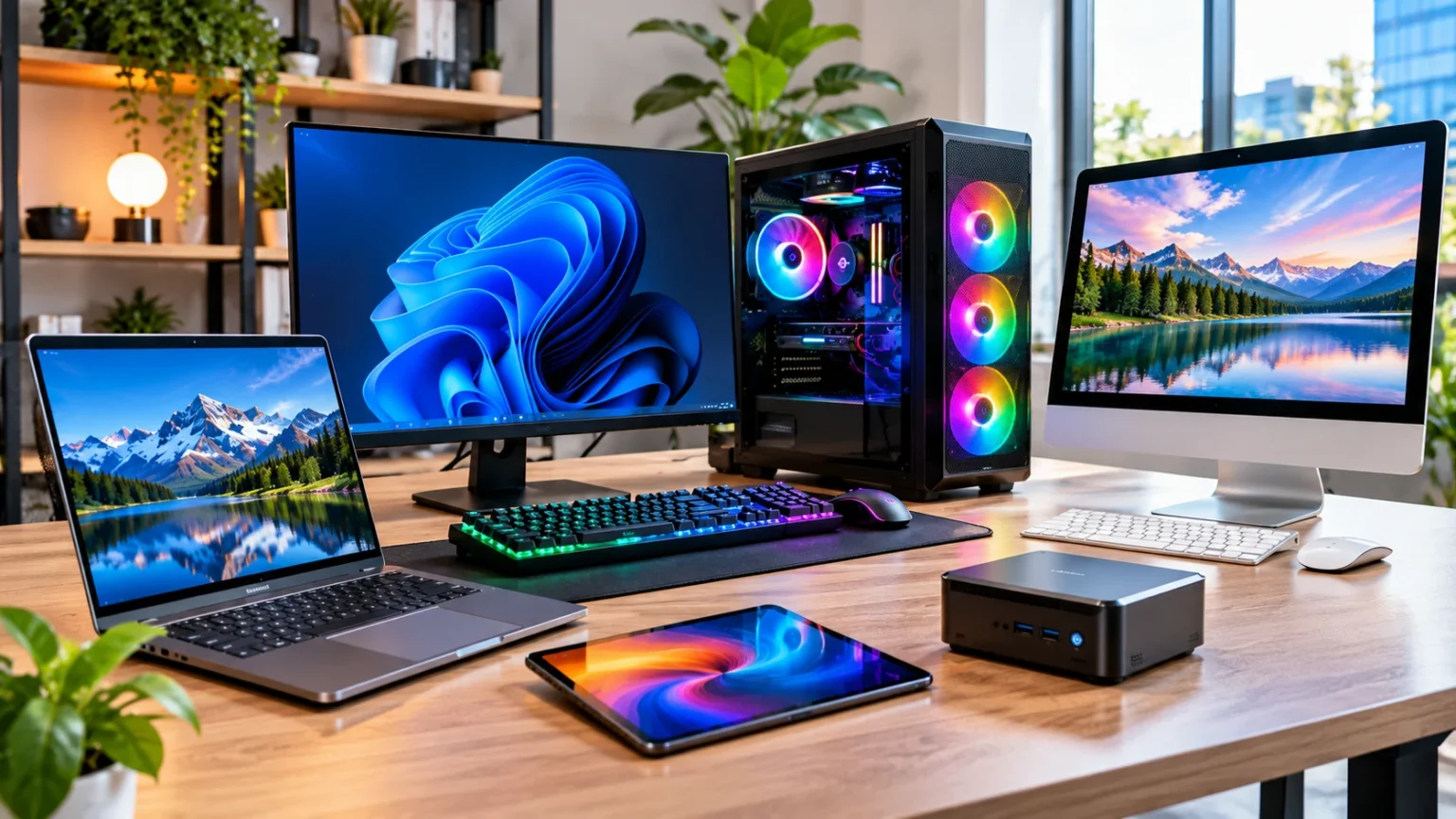

You might find yourself wondering, what is a PC, and how is it different from other computers? A PC, or personal computer, is an electronic device designed for individual use. It helps people complete tasks, access information, communicate, and enjoy entertainment.
Understanding personal computers does not require advanced technical knowledge. Once you learn their basic functions, choosing and using one becomes much easier. This guide explains everything you need to know through simple explanations and practical examples.
What Is a PC?
A PC is a personal computer designed primarily for use by one person at a time. It processes information, runs software, stores files, and performs various digital tasks. Personal computers are commonly used in homes, schools, offices, and businesses.
Unlike large computer systems designed to support many users simultaneously, PCs focus on individual computing needs. You can use them to write documents, browse websites, attend online meetings, or play games. Their flexibility makes them useful in many everyday situations.
For example, a student might use a PC to complete assignments and research educational topics. A business owner could use the same type of device to manage customer records. Although their activities differ, both benefit from personal computing technology.
What Does PC Stand For?
Computer terminology can feel confusing, especially when unfamiliar abbreviations appear frequently. Many people use the word PC without understanding its full meaning. Fortunately, the PC full form is straightforward and easy to remember.
PC stands for Personal Computer. The word personal refers to equipment intended primarily for individual use. Computer refers to an electronic device capable of processing data and performing instructions.
People sometimes use PC to describe computers running the Windows operating system. However, the broader technical definition includes personal computers running other operating systems, such as macOS and Linux. The meaning often depends on the context of the conversation.
How Does a PC Work?
Have you ever wondered what happens when you open a document or visit a website? Your computer completes several operations within seconds to display the information you request. Understanding these basic processes makes computer technology less intimidating.
A personal computer receives input through devices such as a keyboard or mouse. Its processor handles instructions, while memory temporarily stores information needed for current tasks. The results then appear through output devices such as your monitor or speakers.
A PC generally follows four basic operations:
- Input: Receives information from users or connected devices.
- Processing: Performs calculations and follows instructions.
- Storage: Saves information for future access.
- Output: Presents processed information to the user.
Think of your PC as a digital workspace where different components perform specific responsibilities. Each component contributes to completing your requested task. Together, they allow your computer to perform complicated activities quickly and efficiently.
What Are the Main Components of a PC?
Looking at computer specifications can feel overwhelming when every component has a technical name. Understanding these parts helps you avoid purchasing equipment that does not meet your requirements. Each component contributes differently to computer performance.
Central Processing Unit (CPU)
The CPU acts as the main processor of a computer. It executes instructions, performs calculations, and coordinates many computing operations. A suitable processor helps your PC handle everyday applications and more demanding tasks.
Random Access Memory (RAM)
RAM provides temporary working space for applications and active processes. Having sufficient RAM helps your computer manage multiple programs without unnecessary slowdowns. Unlike permanent storage, its contents are generally lost when the computer shuts down.
Storage Drive
A storage drive keeps your documents, applications, videos, and operating system files. Common storage options include hard disk drives and solid-state drives. SSDs generally provide faster file access, application loading, and system startup than traditional HDDs.
Motherboard
The motherboard is the main circuit board inside a computer. It connects the processor, memory, storage, and other important components. Think of it as a communication network that allows different computer parts to work together.
Graphics Processing Unit (GPU)
A GPU processes visual information and helps display images, videos, and graphics. Some computers use integrated graphics, while others include dedicated graphics hardware. Dedicated GPUs are particularly useful for demanding gaming, video editing, and 3D design applications.
Power Supply
The power supply delivers electrical energy to desktop computer components. Laptops use batteries and external power adapters to support their operation. Reliable power delivery is essential for maintaining stable computer performance.
What Are the Different Types of Personal Computers?
Not every personal computer looks or functions in exactly the same way. Some prioritize portability, while others focus on performance, flexibility, or space efficiency. Understanding different PC types helps you select equipment that matches your lifestyle.
Desktop Computers
A desktop computer is designed primarily for use at a fixed location. Traditional desktops usually include a separate system unit, monitor, keyboard, and mouse. Many desktop models allow users to upgrade individual components as their computing requirements change.
Desktop PCs are useful for office work, gaming, graphic design, and general home computing. They often provide flexible hardware configurations and comfortable workspace arrangements. However, their size makes them less convenient for frequent travel.
Laptop Computers
A laptop combines a screen, keyboard, touchpad, battery, and computing components within one portable device. Its compact design allows users to work from different locations. Laptops are particularly popular among students, remote workers, and traveling professionals.
The biggest advantage of a laptop is its portability. You can carry it between classrooms, offices, and home without needing separate equipment. However, some laptops have fewer hardware upgrade options than traditional desktop computers.
All-in-One Computers
An all-in-one PC combines most computing components with the display into a single unit. This design reduces cable clutter and saves desk space. It is a practical choice for reception areas, home offices, and everyday computing.
These computers offer a cleaner appearance than traditional desktop setups. However, their compact internal design may limit certain repair and upgrade options. Consider your future computing requirements before choosing an all-in-one device.
Gaming Computers
Gaming PCs are designed to handle graphically demanding video games. They often include capable processors, dedicated graphics cards, and efficient cooling systems. These components help deliver smoother gameplay and better visual performance.
Gaming computers can also support tasks such as video editing and 3D rendering. However, advanced hardware may be unnecessary if you only browse websites or create documents. Choose performance levels according to your actual needs.
Mini PCs
A mini PC is a compact computer designed to occupy minimal physical space. Despite its small size, many models can perform standard computing tasks effectively. They are often used in offices, entertainment setups, and compact workspaces.
Mini computers are convenient when desk space is limited. They generally require separate monitors, keyboards, and mice for traditional use. Their performance and upgrade capabilities vary depending on the model.
Workstation Computers
Workstations are computers designed for demanding professional applications. They may include powerful processors, large memory capacities, and specialized graphics hardware. Architects, engineers, researchers, and creative professionals often use these systems.
A workstation can handle complex tasks such as simulations, technical drawings, and large design projects. However, its advanced capabilities may make it more expensive than a standard personal computer. Most everyday users do not require workstation-level performance.
Examples of Personal Computers
Understanding computer categories becomes easier when you connect them with familiar devices. Personal computers are available in different designs, configurations, and product families. Each example serves particular computing requirements.
| PC example | Common use |
|---|---|
| Dell OptiPlex | Business and office work |
| HP Pavilion | Everyday home computing |
| Lenovo ThinkPad | Professional and business tasks |
| Apple MacBook Air | Portable work and education |
| Apple iMac | Home offices and creative work |
| ASUS ROG desktop | Gaming and demanding applications |
| Intel NUC-style mini PC | Compact computing setups |
These examples represent different personal computer categories rather than universal recommendations. Individual models have varying specifications, features, and performance capabilities. Always examine the specific configuration before deciding whether a computer suits your needs.
What Are the Main Uses of a PC?
Many people underestimate what a personal computer can accomplish. A PC is more than a device for browsing websites or sending emails. Its capabilities support education, professional development, communication, creativity, and entertainment.
Common uses of personal computers include:
- Creating documents, presentations, and spreadsheets.
- Attending online classes and virtual meetings.
- Browsing websites and conducting research.
- Managing business records and finances.
- Editing photographs, videos, and graphics.
- Developing software and learning programming.
- Playing video games and watching movies.
- Communicating through email and messaging applications.
The usefulness of a computer largely depends on the software installed and its hardware capabilities. A basic PC can support many everyday responsibilities, while specialized systems handle more complicated work. Understanding your intended tasks helps you choose suitable equipment.
What Is the Difference Between a PC and a Laptop?
Many beginners assume that PCs and laptops are completely different devices. This confusion often happens because people commonly use PC to describe desktop computers. Technically, a laptop is also a type of personal computer.
| Desktop PC | Laptop |
|---|---|
| Designed for stationary use | Designed for portable use |
| Usually requires a separate monitor | Includes a built-in display |
| Requires an external power connection | Includes a rechargeable battery |
| Often easier to upgrade | Upgrade options may be limited |
| Requires more workspace | Occupies less space |
| Uses separate input devices | Includes a keyboard and touchpad |
A desktop may suit someone who works from the same location every day. A laptop may be more practical for students and people who travel frequently. Neither is universally better because the ideal choice depends on individual requirements.
What Is the Difference Between a PC and a Mac?
The PC versus Mac debate can make computer shopping unnecessarily complicated. Both devices perform similar everyday tasks, but their operating systems and hardware environments differ. Understanding these differences helps you focus on practical requirements rather than brand preferences.
In everyday conversations, PC often refers to a Windows-based computer. A Mac refers to personal computers developed by Apple that run macOS. However, Macs also fall under the broader definition of personal computers.
| Windows PC | Mac |
|---|---|
| Runs Windows | Runs macOS |
| Available from multiple manufacturers | Developed by Apple |
| Offers varied hardware configurations | Uses Apple’s hardware configurations |
| Supports a broad range of PC games | Game availability varies |
| Available across many price categories | Available within Apple’s product ranges |
Before choosing between them, consider the applications you need for work or education. Some software programs may work better on particular operating systems or have limited compatibility. Selecting a device based on practical needs can prevent unnecessary frustration.
What Is an Operating System in a PC?
A computer cannot provide a practical user experience through hardware alone. It requires software that manages resources and allows users to interact with applications. This essential software is called an operating system.
Common PC operating systems include:
- Windows: Widely used for business, education, and gaming.
- macOS: Apple’s operating system for Mac computers.
- Linux: A family of operating systems popular among developers and technology enthusiasts.
- ChromeOS: An operating system commonly used on Chromebooks.
An operating system manages files, memory, applications, connected devices, and system resources. It provides the interface through which you interact with your computer. Choosing an appropriate operating system helps ensure compatibility with your preferred software.
What Are the Benefits of Using a PC?
Completing complicated tasks manually can consume valuable time and effort. Personal computers simplify many activities by providing digital tools for processing, organizing, and sharing information. These advantages make PCs important in modern daily life.
The main benefits of personal computers include:
- Improved productivity and time management.
- Convenient access to educational resources.
- Faster communication and collaboration.
- Organized document and file storage.
- Opportunities to develop professional skills.
- Access to creative and entertainment applications.
- Support for remote working and online learning.
A personal computer also provides flexibility because users can install software according to their requirements. You can transform the same device into a workspace, learning platform, or creative studio. This versatility makes personal computing valuable across different industries.
How to Choose the Right PC for Your Needs
Buying a computer without understanding your requirements can result in unnecessary expenses. You might purchase powerful equipment that you rarely use or choose a device that struggles with your applications. Both situations can lead to frustration.
Follow these steps before purchasing a personal computer:
- Identify the main tasks you want to perform.
- Establish a comfortable spending budget.
- Determine whether portability is important.
- Check your software’s system requirements.
- Compare processor, memory, and storage options.
- Review warranty and upgrade possibilities.
- Consider long-term usability and maintenance.
For everyday browsing, document creation, and online classes, a standard PC may be sufficient. Professional editing, engineering software, and demanding games may require stronger hardware. Start with your actual computing needs instead of automatically selecting the most expensive option.
How to Maintain a Personal Computer
A slow or unreliable computer can interrupt your work and waste valuable time. Over time, unnecessary applications, limited storage space, and outdated software may affect system performance. Regular computer maintenance helps address many common problems.
Use these simple PC maintenance tips:
- Install operating system and security updates.
- Remove applications you no longer use.
- Keep important files organized.
- Back up valuable documents regularly.
- Avoid downloading software from untrusted sources.
- Keep external ventilation openings unobstructed.
- Use reliable security software.
- Restart your computer when necessary.
Maintaining a computer does not require complicated technical procedures. Simple preventive habits can help protect your information and support reliable performance. Seek professional assistance when you experience persistent hardware problems or unexpected system failures.
Conclusion
Understanding what a PC is makes everyday technology easier to navigate. Personal computers come in different forms, including desktops, laptops, mini PCs, and workstations. Each type offers capabilities suited to different personal and professional requirements.
Learning about computer components, operating systems, and hardware specifications can help you make better purchasing decisions. You do not necessarily need expensive equipment to complete everyday tasks successfully. The best computer is one that matches your requirements, budget, and preferred working environment.
Start by writing down the five main activities you want your computer to perform. Compare those requirements with available computer types and their specifications. Taking this simple step will help you choose a suitable PC with greater confidence.
Frequently Asked Questions
What is a PC in simple words?
A PC is a personal computer designed for individual use. It allows people to perform everyday activities such as browsing websites, creating documents, studying, communicating, and enjoying digital entertainment.
Is a laptop considered a PC?
Yes, a laptop is a type of personal computer. Unlike traditional desktops, laptops combine essential computing components, a display, and a rechargeable battery within one portable device.
What are the main types of PCs?
The main types include desktop computers, laptops, all-in-one computers, mini PCs, gaming computers, and workstations. Each type serves different computing needs, performance requirements, and working environments.
Can a PC work without the internet?
Yes, a PC can perform many offline tasks, including writing documents, editing files, running installed applications, and playing offline games. Internet access is necessary for activities that require online connectivity.
Is a PC better than a laptop?
Neither is always better. Desktop PCs often offer greater hardware flexibility, while laptops provide portability and convenience. The right choice depends on your budget, working environment, and computing requirements.