
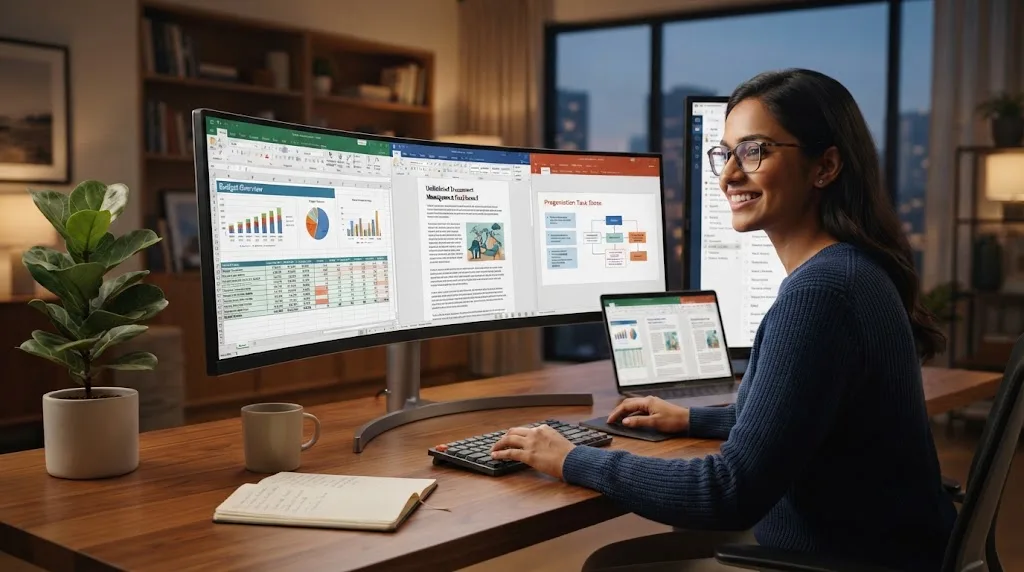

A good Microsoft Office alternative should handle the everyday tasks most people actually need, including writing documents, creating spreadsheets, building presentations, and opening common file formats. The best free office suites also provide familiar formatting tools, templates, formulas, charts, and collaboration features. Ideally, the software should be easy enough to use without requiring hours of adjustment.
Compatibility is particularly important if you regularly exchange files with people using Word, Excel, or PowerPoint. A free office suite should be able to open and save popular formats such as DOCX, XLSX, and PPTX without dramatically changing layouts. Complex documents may still display differently, so businesses should test important files before completely replacing Microsoft Office.
You should also consider whether you prefer desktop software or a browser-based office suite. Desktop applications are useful for offline work and local file storage, while cloud-based tools make collaboration and sharing much easier. The best choice depends on your internet access, privacy requirements, workflow, operating system, and how frequently multiple people edit the same files.
LibreOffice: Best Free Desktop Office Suite
LibreOffice is one of the strongest free alternatives to Microsoft Office for people who want traditional desktop applications without a subscription. The suite includes Writer for documents, Calc for spreadsheets, Impress for presentations, and additional tools for databases, formulas, and drawings. It works particularly well for students, home users, organizations, and professionals who prefer storing documents locally.
Writer provides many of the formatting and editing features expected from a full word processor. Calc supports formulas, charts, filters, and spreadsheet analysis, while Impress can create slide presentations for meetings or classes. The interface does not perfectly copy Microsoft Office, but most experienced office software users can understand the basic workflow after spending some time with it.
LibreOffice also supports Microsoft Office file formats, although perfect formatting compatibility is not guaranteed with highly complex documents. Files containing advanced macros, unusual fonts, sophisticated charts, or complicated layouts may require adjustments. For ordinary documents and spreadsheets, however, LibreOffice provides an impressive set of tools without requiring users to purchase a license or maintain a recurring subscription.
Google Docs, Sheets, and Slides: Best for Collaboration
Google’s office applications are among the easiest Microsoft Office alternatives for teams that work together online. Google Docs handles word processing, Sheets provides spreadsheet tools, and Slides supports presentations. Because everything runs through a browser, users can access their files from Windows, Mac, Chromebooks, and other internet-connected devices without installing a traditional desktop office suite.
Real-time collaboration is the biggest advantage. Several people can work inside the same document, leave comments, suggest edits, review previous versions, and see changes without repeatedly emailing attachments. This approach works particularly well for remote teams, students, content departments, small companies, and organizations where collaboration is more important than advanced desktop formatting features.
Google’s tools can also import and export common Microsoft Office formats, which makes exchanging files relatively straightforward. However, complicated Word layouts, advanced Excel functions, or detailed PowerPoint presentations may not always transfer perfectly. Users who collaborate heavily online may accept those limitations because the convenience of sharing, comments, version history, and automatic saving can significantly simplify daily work.
ONLYOFFICE: Best for Microsoft Office-Like File Compatibility
ONLYOFFICE is another strong free alternative for users who frequently work with Microsoft Office file formats. Its desktop editors include tools for documents, spreadsheets, presentations, PDF-related tasks, and form creation. The interface feels more familiar to people coming from modern Microsoft Office applications, which can reduce the adjustment period when switching away from Word, Excel, and PowerPoint.
Document editing includes common formatting, tables, images, references, comments, and collaboration-related functionality. The spreadsheet editor provides formulas, charts, formatting options, and data tools, while the presentation application supports slides, media, transitions, and visual elements. This makes ONLYOFFICE useful for users who want an office suite that feels relatively traditional while remaining available without a Microsoft 365 subscription.
Compatibility is one of the main reasons people consider ONLYOFFICE. It is designed to work closely with formats such as DOCX, XLSX, and PPTX, which can be important for offices that regularly exchange files with Microsoft users. As with any alternative suite, businesses should still test complex templates, macros, or specialized documents before migrating important workflows completely.
Zoho Workplace: Best for Small Businesses Working Online
Zoho offers a collection of productivity tools that can serve as an alternative to Microsoft’s office ecosystem. Zoho Writer handles documents, Zoho Sheet manages spreadsheets, and Zoho Show creates presentations. These applications work particularly well for people who prefer browser-based productivity and want their office tools connected with other business applications within the broader Zoho environment.
Zoho Writer provides collaborative editing, comments, formatting, and document-sharing capabilities, while Zoho Sheet offers formulas, charts, data organization, and spreadsheet tools. Zoho Show gives users a way to build and share visual presentations without installing PowerPoint. The browser-based approach makes these tools accessible from different computers as long as users can sign in to their accounts.
Small businesses may find Zoho especially appealing when they already use its customer relationship, project, communication, or business-management applications. Keeping several tools within one ecosystem can reduce unnecessary switching between platforms. However, companies should compare free-plan limitations carefully because certain advanced features, storage options, or organizational capabilities may require paid plans as their needs expand.
WPS Office Free: Best for a Familiar Office Experience
WPS Office is another popular option for users looking for software with an interface that feels similar to Microsoft Office. Its main applications cover word processing, spreadsheets, presentations, and PDF-related tasks. The familiar layout can be attractive for users who do not want to completely relearn how to format documents, build formulas, or create presentation slides.
The suite supports commonly used Microsoft file types, making it practical for students, freelancers, and home users who receive Word, Excel, or PowerPoint files. Templates and built-in tools can also make it easier to create resumes, reports, presentations, budgets, and everyday business documents. Many standard productivity tasks can therefore be handled without purchasing the full Microsoft Office suite.
Users should still review what is included in the free version because some tools and services may be reserved for paid plans. Advertising or premium prompts can also affect the experience depending on the platform and version being used. WPS Office is most appealing when interface familiarity and file compatibility matter more than having a completely open-source productivity environment.
FreeOffice: Best for Simple Desktop Productivity
FreeOffice provides word processing, spreadsheet, and presentation applications designed for users who want a straightforward desktop office suite. Its core tools offer familiar functionality for creating everyday documents, financial sheets, reports, and presentations. The software can be particularly useful for home users, students, and professionals who want traditional desktop programs without paying for a full Microsoft Office license.
The interface is relatively approachable for people who already understand Word, Excel, and PowerPoint. Users can perform typical tasks such as changing styles, inserting tables, working with formulas, creating charts, and preparing presentation slides. Because the applications are desktop-based, they can also be convenient when internet access is unreliable or users prefer keeping important files locally.
FreeOffice may not provide every advanced feature found in Microsoft’s productivity software, but many users simply do not need those capabilities. Someone writing reports, creating household budgets, or preparing basic presentations may find the available functionality more than sufficient. The key is comparing the features you actually use rather than judging office software by the total number of available tools.
Desktop vs Cloud Office Suites: Which Is Better?
Desktop office suites are generally better when you regularly work without internet access or prefer keeping documents directly on your computer. LibreOffice, ONLYOFFICE Desktop Editors, FreeOffice, and desktop versions of other office applications can provide reliable offline productivity. They may also feel more comfortable for people who have spent years working in traditional installed software.
Cloud office suites are stronger when collaboration, sharing, and access from multiple devices matter more. Google Docs and similar browser-based tools allow teams to edit the same files simultaneously without creating several conflicting versions. Automatic saving and easy sharing can make cloud productivity especially useful for remote workplaces, school projects, agencies, and distributed business teams.
Many people benefit from combining both approaches rather than choosing only one. Desktop software can handle offline documents and complicated local files, while cloud tools can manage collaborative projects and shared drafts. A flexible workflow lets you choose the right application for each task instead of forcing every document, spreadsheet, or presentation into the same environment.
Improve Productivity Beyond Your Office Suite
Replacing Microsoft Office is only one part of creating a more efficient digital workspace. Productivity also depends on how quickly you find information, manage distractions, organize files, communicate with colleagues, and complete repetitive tasks. Choosing tools that work together smoothly can often save more time than simply switching from one word processor or spreadsheet program to another.
Browser-based workflows can become especially efficient when combined with useful productivity extensions. Extensions can support tasks such as tab management, writing assistance, note taking, focus, password management, and workflow organization. The goal should be to remove unnecessary steps from everyday work rather than installing dozens of tools that create more notifications and complexity.
Keep your productivity system simple enough that you actually use it consistently. One reliable office suite, a clear file-storage method, sensible browser tools, and a few well-chosen integrations may be more effective than a collection of overlapping applications. Evaluate new software according to whether it reduces friction, saves time, or improves collaboration in your normal workflow.
File Compatibility With Word, Excel, and PowerPoint
Microsoft Office formats remain widely used, so compatibility should be a major consideration when choosing an alternative. Most leading free office suites can open DOCX, XLSX, and PPTX files, and many can save documents back into those formats. Basic text, tables, formulas, and presentation elements usually transfer reasonably well between modern productivity applications.
Problems are more likely with highly sophisticated documents. Complex macros, custom fonts, advanced Excel formulas, embedded objects, detailed animations, specialized plugins, and unusual page layouts can behave differently outside Microsoft Office. If your company relies on complicated financial models or standardized client templates, testing those files should be one of the first steps before changing software.
For general personal, educational, and small-business use, perfect compatibility may not be necessary. Most everyday reports, invoices, spreadsheets, assignments, and presentations use relatively standard formatting. Still, always review important documents after converting or opening them in another suite, especially before sending the file to a client, employer, teacher, or external business partner.
Security and Privacy When Using Free Office Software
Security should not be overlooked simply because office software is free. Download desktop applications from the official developer rather than unfamiliar download websites, and keep the software updated so security fixes are installed. Be careful with documents containing macros or unexpected embedded content, particularly when those files arrive from unknown people through email or messaging platforms.
Cloud productivity suites introduce additional considerations because documents are stored online. Protect your account with a strong unique password and enable multifactor authentication whenever possible. Businesses should also review sharing permissions carefully because an accidentally public document link can expose information even when the underlying cloud platform itself has strong security protections.
Privacy requirements differ depending on what kind of information you create. Personal notes have different risks from employee records, financial data, legal documents, or confidential client information. Before placing sensitive material into any free cloud service, review its account controls, sharing options, storage policies, and organizational features to make sure they meet your requirements.
How to Choose the Best Microsoft Office Alternative
Start by listing the Microsoft Office applications and features you actually use. If most of your work involves straightforward documents and spreadsheets, almost any major alternative may be sufficient. If you depend heavily on complex Excel models, Word macros, Outlook integration, or advanced PowerPoint features, replacing Microsoft Office completely may require significantly more testing and workflow adjustments.
Next, think about where and how you work. Choose a desktop suite if offline access, local file control, and traditional applications are priorities. Choose a cloud-based platform if collaboration, automatic saving, easy sharing, and access from several devices matter more. Teams may also need user permissions, revision history, comments, templates, and consistent account management.
Finally, test one or two alternatives with real files before making a permanent switch. Open your existing documents, edit spreadsheets, create a presentation, export files, and share them with someone who uses Microsoft Office. A short practical test reveals compatibility and usability problems much faster than comparing feature lists without experiencing how the software fits your actual workflow.
Conclusion
The best free alternatives to Microsoft Office offer more functionality than many users expect. LibreOffice is an excellent desktop choice, Google Docs excels at online collaboration, and ONLYOFFICE is appealing for users who prioritize familiar Microsoft formats. Zoho, WPS Office, and FreeOffice provide additional options depending on whether you value business integration, interface familiarity, or straightforward desktop productivity.
No single free office suite is perfect for everyone. Students and remote teams may prefer cloud collaboration, while professionals handling local documents may feel more comfortable with installed desktop applications. Your decision should be based on file compatibility, collaboration needs, privacy, offline access, device support, and the complexity of the documents you regularly create.
Before paying for Microsoft Office simply because it is familiar, test one of these free alternatives with your normal work. You may discover that most of the features you rely on are already available without a subscription. The best alternative is ultimately the one that handles your files reliably and helps you work without introducing unnecessary complications.
FAQs
What is the best free alternative to Microsoft Office?
LibreOffice is one of the strongest free desktop alternatives, while Google Docs, Sheets, and Slides are excellent for collaboration. The best choice depends on whether you prefer offline software or cloud-based productivity tools.
Can free office software open Microsoft Word and Excel files?
Yes, most major alternatives can open DOCX and XLSX files. However, complex formatting, advanced macros, specialized formulas, or embedded content may not always appear exactly as they do in Microsoft Office.
Is LibreOffice completely free?
LibreOffice is a free, open-source office suite that includes applications for documents, spreadsheets, presentations, databases, drawings, and formulas. It is especially useful for people seeking traditional desktop productivity software.
Is Google Docs a good replacement for Microsoft Word?
Google Docs can replace Word for many everyday writing and collaboration tasks. Microsoft Word may still be preferable when working with highly complex formatting, advanced desktop features, macros, or specialized document workflows.
Which free Microsoft Office alternative works offline?
LibreOffice, ONLYOFFICE Desktop Editors, FreeOffice, and other installed desktop suites can work without a constant internet connection. They are useful for users who need reliable offline access to documents and spreadsheets.