
Best Free Photo Editing Apps
Taking a great photo is only the beginning. Even a well-composed image can benefit from better lighting, improved color, sharper details, cleaner backgrounds, or a more balanced crop. Fortunately, you no longer need expensive desktop software to make professional-looking improvements. Many of the best free photo editing apps now provide powerful tools directly on smartphones, tablets, browsers, and computers. Whether you are editing vacation pictures, product photos, social media content, portraits, or professional images, there is likely a free editor that fits your needs.
Modern photo editing has also become easier for beginners. Instead of learning complicated software immediately, users can adjust brightness, contrast, saturation, highlights, shadows, and color temperature with simple sliders. Many apps also include presets, filters, healing tools, selective adjustments, background editing, RAW support, and increasingly capable AI-assisted features. This means casual photographers can improve photos quickly, while experienced creators can still access more precise controls when they need them.
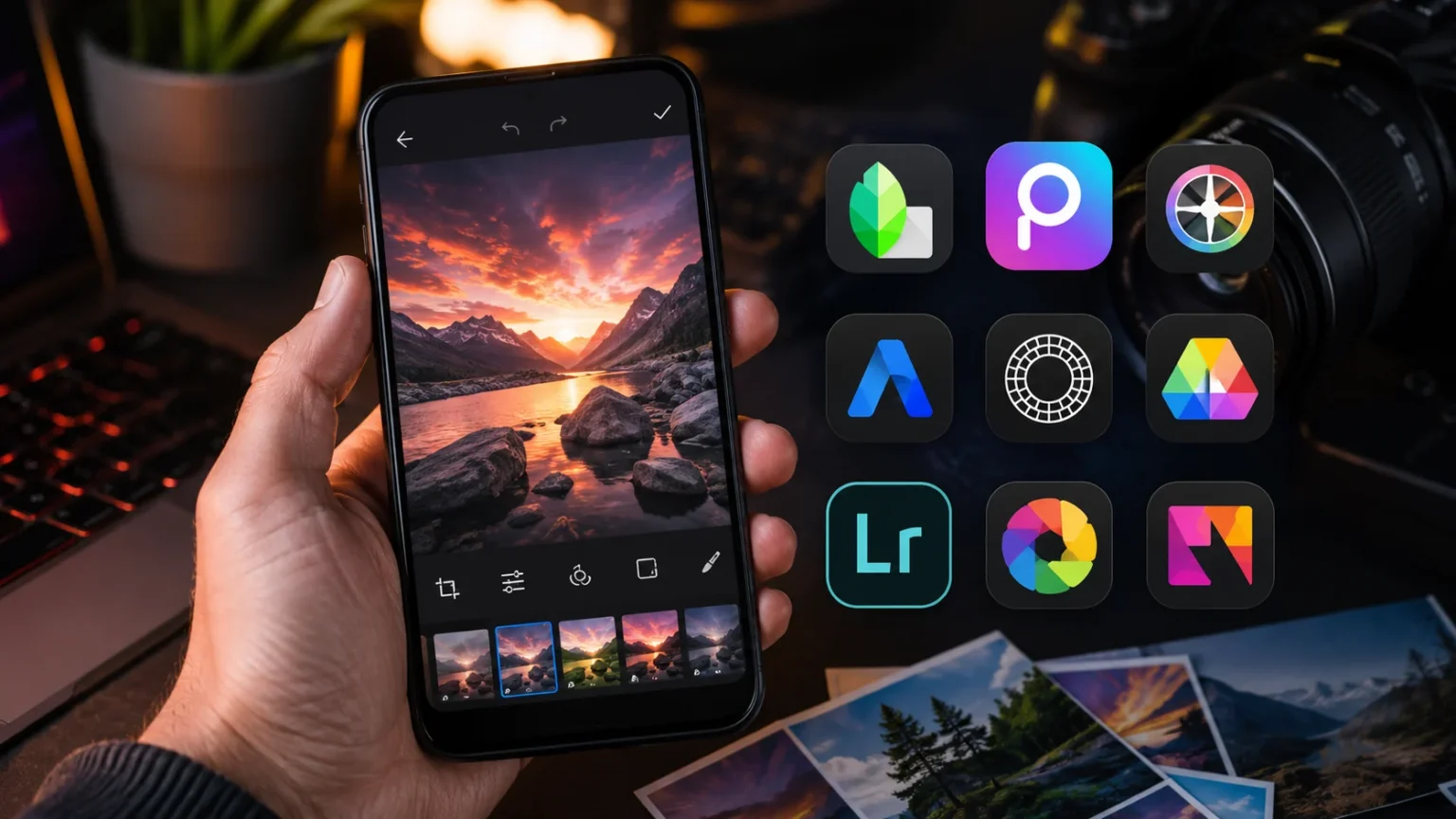
The challenge is choosing the right free photo editor because every app takes a slightly different approach. Snapseed is particularly strong for detailed mobile editing, Lightroom offers powerful photographic controls, Canva combines image editing with graphic design, and Pixlr provides convenient browser-based tools. Other applications focus on social media effects, portraits, quick enhancements, or creative designs. Understanding these differences helps you avoid downloading several overlapping apps that ultimately perform the same job.
This guide explores the best free photo editing apps for different types of users, including beginners, photographers, content creators, business owners, and social media users. We will look at what each app does particularly well, where its free version may have limitations, and which workflow it suits best. The goal is not simply to find the app with the longest feature list, but to choose a photo editor that makes your images better without making the editing process unnecessarily complicated.
1. Snapseed – Best Free Photo Editing App Overall
Snapseed remains one of the strongest choices for users who want powerful mobile photo editing without immediately being pushed toward a subscription. Developed by Google, the app combines a relatively approachable interface with advanced tools that can handle both everyday corrections and more detailed creative adjustments. You can work on exposure, contrast, white balance, saturation, sharpness, perspective, and other essential elements while maintaining significant control over how the final image looks.
One of Snapseed’s biggest strengths is its collection of selective editing tools. Instead of changing the entire picture every time you move a slider, you can target particular areas that need improvement. For example, you might brighten a person’s face without increasing brightness across the whole background or enhance detail in one object while leaving everything else untouched. This makes Snapseed useful when global adjustments are not precise enough to create the natural result you want.
The app also provides tools for healing unwanted distractions, adjusting perspective, adding controlled blur, creating black-and-white images, applying film-inspired looks, and working with RAW photographs. These capabilities make it suitable for more than casual filter application. Photographers who understand basic editing concepts can create refined images entirely on a phone, while beginners can gradually explore more advanced controls as they become comfortable with exposure and color correction.
Snapseed is particularly suitable for people who want a free photo editor for Android or iPhone without building their workflow around premium effects. It may take a little experimentation to understand tools such as selective adjustments and curves, but the learning investment is worthwhile. For travel photography, portraits, landscapes, food images, product photos, and everyday mobile photography, Snapseed offers an impressive balance between simplicity, precision, and creative control.
2. Adobe Lightroom – Best for Professional Photo Adjustments
Adobe Lightroom is a strong option for users who care about photography rather than primarily adding decorative graphics, stickers, or social media effects. The mobile app provides useful editing functionality for free, while additional capabilities are available through premium plans. Lightroom’s main advantage is the level of control it provides over light and color. Users can make subtle corrections instead of relying entirely on one-tap filters that may overpower the original photograph.
Exposure adjustments allow you to brighten or darken an image, while highlights and shadows provide more targeted control over bright and dark areas. You can also modify contrast, whites, blacks, color temperature, tint, saturation, and vibrance. These tools are particularly useful when a photograph looks almost right but needs careful balancing. Landscape photographers, food photographers, travel creators, and social media users can create more polished images without dramatically changing their original appearance.
Lightroom is also popular because of its preset-based workflow. Presets allow you to apply a group of adjustments quickly, making it easier to maintain a consistent visual style across several images. This can be valuable for Instagram feeds, product photography, portfolios, travel albums, or personal brands where visual consistency matters. Instead of manually recreating the same combination of color and tone adjustments repeatedly, a preset can provide a practical starting point that you then refine.
Some advanced Lightroom tools and services require a paid subscription, so users should understand that the free mobile experience is not identical to the complete premium ecosystem. Even with those limitations, it remains one of the best free photo editing apps for photographers who prioritize exposure, color, tonal control, and professional-looking adjustments. If you want to learn transferable photo-editing skills rather than simply applying trendy filters, Lightroom is an excellent app to explore.
3. Canva – Best for Photos and Social Media Designs
Canva approaches photo editing differently because it combines image enhancement with a much larger graphic design environment. Instead of simply correcting a photograph and exporting it, users can place images inside social media posts, presentations, posters, thumbnails, advertisements, invitations, and other visual formats. This makes Canva particularly useful for creators, marketers, bloggers, small businesses, students, and entrepreneurs who frequently need finished designs rather than standalone edited photographs.
The free photo editor includes essential tools such as cropping, resizing within designs, filters, effects, and common image adjustments. You can quickly modify brightness, contrast, saturation, and other visual characteristics before combining your picture with typography, shapes, backgrounds, or design elements. This workflow can save substantial time when your final goal is a YouTube thumbnail, Instagram post, Pinterest graphic, Facebook cover, promotional image, or other piece of digital content.
Canva also stands out because of its template-driven approach. Someone with limited graphic design experience can begin with a professionally structured layout rather than facing an empty canvas. You can replace sample photos with your own images, adjust the composition, modify colors, and personalize the design. This makes the learning curve much lower for non-designers who need attractive visual content quickly but do not necessarily want to master advanced layer-based image software.
Not every Canva feature is included in the free plan, and some advanced creative or AI-powered tools may require premium access or have usage restrictions. Nevertheless, the free version remains highly useful for everyday image editing and design. For anyone searching for a free photo editing app for social media, Canva is one of the most practical choices because it allows you to move from basic photo correction to a finished, publishable graphic within the same workspace.
4. Pixlr – Best Free Online Photo Editor
Pixlr is an appealing option for users who want to edit photos without committing to heavy desktop software. Its browser-based tools make it possible to open an image, make adjustments, create compositions, and export the result from a compatible computer or device. This accessibility is valuable when you occasionally need more editing control than a basic phone gallery provides but do not want to install a large professional application just to complete a relatively simple job.
The platform offers familiar photo-editing functions such as cropping, resizing, filters, adjustments, overlays, background-related tools, and more advanced editor-style capabilities. Depending on the specific Pixlr editor you use, the experience can range from quick image enhancement to more detailed layer-based work. This flexibility makes the service useful for students, content creators, bloggers, online sellers, and users who occasionally need to prepare images for websites or social platforms.
AI-assisted tools have also become increasingly prominent within Pixlr’s editing environment. Features may help simplify tasks that previously required careful manual selection or advanced editing knowledge. However, users should remember that some AI features, usage allowances, exports, or premium capabilities can have restrictions depending on the current free offering. The most useful approach is to consider AI tools as convenient additions while still understanding basic techniques such as cropping, exposure adjustment, and color correction.
Pixlr is particularly helpful when you need a free online photo editor that works from a browser and provides more flexibility than a basic one-click enhancement tool. It may not replace dedicated professional desktop software for complex commercial retouching, but that is not necessary for most everyday users. For quick photo improvements, web graphics, product images, thumbnails, and creative online editing, Pixlr provides a convenient balance between accessibility and useful functionality.
5. Picsart – Best for Creative and Social Media Edits
Picsart is designed for users who enjoy creative editing as much as traditional photo correction. Instead of focusing exclusively on accurate color and exposure adjustments, the platform combines editing tools with filters, effects, stickers, text, templates, collages, and other design options. This makes it particularly popular for social media imagery, profile pictures, promotional content, fan edits, lifestyle photography, and images where visual personality matters more than strict photographic realism.
Beginners can use ready-made effects and adjustments to transform an ordinary photo quickly, while more experienced users can combine multiple elements to develop distinctive compositions. You might start by improving lighting, then add a filter, adjust the crop for a social platform, include text, or experiment with creative overlays. Having these tools inside one application can reduce the need to export the same image between several different editors during a simple social media workflow.
Picsart is especially useful when traditional editing feels too restrictive. Sometimes the goal is not to reproduce exactly what the camera captured but to create something visually playful, dramatic, colorful, or attention-grabbing. Content creators can experiment with portrait effects, collages, decorative elements, and stylized edits that would take considerably longer to build manually in professional desktop software. The interface is generally designed around experimentation rather than technical photographic terminology.
The platform offers both free and premium functionality, so not every template, effect, AI feature, or editing tool will necessarily be available without payment. Users should look for free options that provide the effect they need rather than assuming every visible feature is included. For people interested in free photo editing apps for Instagram and social media, Picsart remains worth considering because its creative approach goes far beyond simple brightness and contrast corrections.
6. Adobe Express – Best for Quick Content Creation
Adobe Express combines straightforward image editing with tools intended for fast visual communication. Like Canva, it is especially relevant when the photograph is only one part of a larger design. A user might edit an image and then turn it into a social post, promotional graphic, flyer, thumbnail, story, or other piece of visual content. This makes the platform useful for small businesses, students, marketers, creators, and anyone who wants polished results without learning complex professional design software.
The free experience can handle common design and image tasks while providing access to templates and creative workflows. You can begin with a photograph, make basic adjustments, and then place the image within a layout sized appropriately for its intended platform. This is particularly helpful because different online channels require different dimensions and compositions. Creating the final graphic inside the same environment reduces repeated resizing and exporting between multiple applications.
Adobe Express also benefits from Adobe’s broader experience with creative tools, making it an accessible entry point for users who may eventually explore more specialized software. However, Express is not simply a simplified version of Photoshop or Lightroom. Its focus is speed and content creation rather than deep pixel-level retouching. Someone creating marketing graphics may prefer this workflow, while a photographer making detailed tonal corrections may find Lightroom more appropriate.
As with many freemium creative platforms, advanced assets and certain premium capabilities require payment. The free version is still useful if your needs involve straightforward edits, templates, typography, and digital content creation. If you want a free photo editor for marketing and social media content, Adobe Express is a practical choice because it bridges the gap between editing a raw image and turning that image into a finished communication piece.
7. Photopea – Best Free Photoshop-Style Editor
Photopea is an excellent choice for users who want a more traditional desktop-style editing environment without immediately purchasing professional software. It runs through a web browser and uses a workspace that will feel familiar to people who have experience with layer-based image editors. Rather than limiting users to filters and simple sliders, Photopea supports more complex workflows involving layers, selections, masks, text, adjustments, blending, and detailed image manipulation.
This makes Photopea particularly useful for tasks that are difficult to complete in lightweight mobile editors. You might need to combine several images, remove or replace part of a composition, design a banner, modify a layered template, prepare website graphics, or make detailed adjustments that require precise selections. Understanding layers gives users significantly greater creative freedom because different elements can be edited independently rather than permanently changing the original image immediately.
Beginners may initially find the interface more intimidating than apps such as Snapseed or Canva. Terms such as masks, blending modes, selections, adjustment layers, and rasterization require some learning. However, these concepts are extremely valuable if you want to develop more serious image-editing skills. Learning them in a free browser-based environment provides a useful path toward more advanced creative work without requiring a paid professional suite from the beginning.
Photopea is especially valuable for desktop and laptop users searching for a free Photoshop alternative for photo editing. It may not offer the same complete ecosystem, performance, or specialized capabilities as premium professional software, but it does provide considerably more control than basic filter apps. For layered graphics, detailed online image editing, web assets, mockups, and more technical photo manipulation, it is one of the strongest free browser-based options available.
8. GIMP – Best Free Desktop Photo Editing Software
GIMP is different from most mobile-first applications on this list because it is a full desktop image editor. It is a good option for Windows, macOS, and Linux users who want detailed image manipulation without paying for a subscription. The program supports extensive editing capabilities, making it suitable for photo correction, retouching, compositing, graphic design, selections, masking, and other tasks that go considerably beyond one-tap mobile enhancements.
One of GIMP’s greatest advantages is control. You can work with layers, selections, brushes, masks, curves, levels, color adjustments, transformations, and many other tools that experienced editors expect from desktop software. These capabilities allow you to perform precise work that would be difficult on a small phone screen. Product photographers, bloggers, designers, students, and hobbyists can use the software to prepare detailed images for websites, print projects, portfolios, and creative work.
The tradeoff is a steeper learning curve. GIMP is not designed around the same quick workflow as Snapseed or a social media editor where you can apply a preset and export within seconds. New users may need time to understand layers, selections, masks, and different adjustment methods. Starting with fundamental tools such as crop, levels, curves, healing, and basic selections can make the learning experience much more manageable than trying to understand the entire application immediately.
For users willing to spend time learning desktop editing, GIMP can become a powerful long-term tool. Unlike many freemium apps that place advanced features behind recurring subscriptions, GIMP follows a different free and open-source model. Anyone searching for free professional photo editing software for a computer should consider it, particularly when detailed retouching and manual control matter more than trendy filters or quick social media templates.
9. Which Free Photo Editing App Is Best for Beginners?
Beginners should prioritize simplicity rather than choosing an app solely because it contains the largest number of features. A complicated editor can make basic tasks feel intimidating and discourage experimentation. Snapseed is a strong starting point for people who want to learn actual photo adjustments, while Canva is easier for users primarily creating social media graphics. Google or Apple gallery editing tools can also handle simple crops, exposure adjustments, and filters before you need a dedicated application.
Start by learning a few fundamental adjustments. Exposure controls the overall brightness of an image, while contrast affects the difference between light and dark areas. Highlights help manage bright portions, shadows influence darker areas, and white balance changes how warm or cool a picture appears. Once these basic concepts become familiar, nearly every photo editor becomes easier to understand because many applications use variations of the same controls.
Avoid relying on filters for every photo. Filters can provide a quick visual style, but applying them at maximum intensity may make skin tones unnatural, crush detail in shadows, or create unrealistic colors. Try making basic exposure and color corrections first, then apply a filter subtly if the image still needs a particular mood. A restrained editing approach often produces photographs that remain visually attractive for longer than heavily processed trends.
The best free photo editing app for beginners is ultimately the one you feel comfortable opening regularly. If Snapseed’s tools seem intuitive, use it consistently before adding another application. If your primary goal is creating Instagram posts, Canva may be more useful. Learning one application properly will improve your editing skills faster than downloading five different photo editors and continually switching between unfamiliar interfaces.
10. Best Free Photo Editing Apps for Social Media
Social media editing has different requirements from traditional photography. A technically perfect photograph may still need cropping, text, graphics, or a stronger visual style before it works effectively in a feed or advertisement. Canva, Picsart, and Adobe Express are particularly useful because they combine photo adjustment with design features. They make it easier to convert an ordinary image into finished content designed for specific social platforms.
Creators should also think about consistency. Using dramatically different filters and color treatments on every post can make a profile feel visually disconnected. Lightroom presets or carefully repeated Snapseed adjustments can help establish a consistent photographic style, while Canva templates can create consistent layouts for educational posts or marketing graphics. Maintaining recognizable colors, typography, and image treatment is especially useful for businesses and personal brands.
Cropping is another essential social media consideration. An image composed beautifully for one format may lose important details when forced into a different aspect ratio. Before editing heavily, decide where the image will be published and prepare the composition accordingly. Keep faces, products, text, and essential objects away from areas that platform interfaces may cover. Designing for the final placement reduces the need for rushed changes immediately before publishing.
There is no need to use the same app for every stage. A creator could correct exposure and color in Lightroom or Snapseed, then finish the design in Canva. Another person might complete everything inside Picsart because speed matters more than detailed photographic control. The best free photo editing apps for social media are those that fit your actual publishing workflow while allowing you to produce attractive content consistently and efficiently.
11. Best Free Photo Editing Apps for Professional-Looking Photos
Professional-looking editing usually depends more on restraint and technique than dramatic effects. Lightroom and Snapseed are particularly useful because they give users substantial control over exposure, color, contrast, and local adjustments. Instead of transforming an image into something completely different, you can concentrate on making the existing photograph look cleaner and more balanced. This approach works well for portraits, landscapes, property photos, food photography, and product images.
Begin by fixing obvious technical problems. Correct a tilted horizon, crop distracting edges, balance exposure, recover highlight detail where possible, and brighten shadows carefully. Then evaluate white balance because an incorrect temperature can make skin, food, interiors, and products appear unnatural. Small adjustments usually produce a more professional result than extreme saturation or excessive clarity. Try to improve the photograph without making the editing itself the first thing viewers notice.
Selective editing is especially useful when one part of the photograph needs attention. Brightening an underexposed face, reducing brightness in a distracting background, or enhancing detail in the main subject can direct the viewer’s eye naturally. Snapseed offers convenient selective controls, while more advanced editors provide masking and selection workflows. Learning to modify specific areas rather than applying every adjustment globally is an important step toward more polished editing.
Professional results also start before editing. Good lighting, accurate focus, intentional composition, and a clean lens make the editing process dramatically easier. No application can completely rescue every poorly captured photograph without compromises. Treat photo editing as a way to refine strong visual information rather than a substitute for thoughtful photography. Combining better shooting habits with a capable free photo editing app can produce results that look significantly more sophisticated.
12. What to Look for in a Free Photo Editing App
The first consideration should be the type of editing you actually perform. Someone who mostly adjusts personal photos does not need the same features as a designer creating layered advertisements. If you primarily correct photographs, prioritize exposure, color, crop, healing, selective adjustments, and RAW capabilities. If you create social content, templates, typography, backgrounds, and easy resizing may matter more. Identifying your typical workflow helps eliminate applications designed for completely different users.
You should also understand what “free” means for each application. Some editors provide a comprehensive free experience, while others follow a freemium model where selected tools, filters, AI capabilities, templates, or exports require payment. This is not necessarily a problem if the free features cover your everyday needs. However, repeatedly encountering locked features can become frustrating, so test the app with your normal workflow before investing significant time in creating presets or learning its interface.
Export quality deserves attention as well. Your finished photo should retain enough resolution for its intended use. Social media images, website graphics, printing, and professional photography may have different requirements. Also check whether the application adds watermarks to certain types of free exports or places restrictions on particular features. A free editor provides much less value if the final output cannot be used in the way you originally intended.
Finally, consider privacy, ease of use, device compatibility, storage requirements, and whether editing depends on an internet connection. People working while traveling may value offline editing, while users who switch between several devices may prioritize cloud synchronization. There is no universal winner because the best free image editing software depends on how, where, and why you edit. Choose a tool that removes friction rather than adding unnecessary complexity to your creative process.
Tips for Making Photos Look Better Without Overediting
Start every edit by deciding what is actually wrong with the picture. Perhaps the subject is too dark, the horizon is tilted, the colors appear cold, or an object near the edge creates distraction. Correcting specific problems produces more purposeful results than moving every available slider simply because it exists. If the original photograph already looks strong, only minor changes may be necessary. Editing should support the subject rather than compete with it.
Be particularly careful with saturation and sharpening. Increasing saturation aggressively can make grass, skies, clothing, and skin appear artificial, while too much sharpening creates harsh edges and unwanted texture. Portraits are especially vulnerable to excessive clarity and skin smoothing. People generally look more natural when texture remains visible. Use subtle adjustments, zoom out regularly, and compare your edited version with the original to make sure you have not gradually pushed the image too far.
Cropping is one of the simplest but most effective editing techniques. Removing empty or distracting areas can immediately strengthen the composition and place more attention on the subject. Before applying complicated effects, experiment with different crops and straighten the frame. A slightly different composition can sometimes improve an image more dramatically than filters, color grading, or sophisticated AI tools.
Finally, save a copy of important originals whenever your workflow could permanently overwrite them. Your editing preferences may change over time, and an original file gives you the freedom to create a completely different version later. Non-destructive editing workflows are particularly useful for important images. Developing careful habits alongside technical skills will improve your photographs more consistently than constantly searching for the newest filter or editing trend.
Final Thoughts
The best free photo editing apps make high-quality image editing accessible whether you are working from a smartphone, browser, or computer. Snapseed is an excellent all-around choice for mobile photographers, while Lightroom provides strong photographic adjustments and color control. Canva and Adobe Express are especially useful when photos need to become finished social media or marketing graphics, while Picsart offers a more creative approach for stylized visual content.
For browser-based editing, Pixlr provides convenient tools without requiring a traditional desktop installation, while Photopea is better suited to users who want a more advanced layer-based workspace. GIMP remains a powerful option for people who prefer detailed desktop editing and are willing to learn a more comprehensive interface. Each application serves a different type of creator, which is why the best choice depends on what you want to accomplish.
If you are new to editing, start with one app rather than downloading everything on this list. Learn cropping, exposure, contrast, highlights, shadows, white balance, and basic color adjustments first. Once you understand those fundamentals, you will be able to achieve good results in almost any editor. Advanced tools become much more valuable when they build on a strong understanding of the basics.
Most importantly, remember that great editing does not require making every photograph dramatic. The purpose of a photo editor is often to bring the image closer to what you intended when you took it. Choose software that gives you enough control without making your workflow unnecessarily complicated. With practice, even completely free editing tools can help turn ordinary photographs into cleaner, more engaging, and professional-looking images.
Meta Description: Discover the best free photo editing apps for professional photos, social media, portraits and quick edits on mobile, desktop and online.
Frequently Asked Questions
What is the best completely free photo editing app?
Snapseed is one of the strongest choices for mobile users because it provides extensive editing tools without requiring a subscription for its core experience. GIMP is a powerful free option for desktop users.
What is the best free photo editing app for beginners?
Snapseed is ideal for beginners who want to learn photo correction, while Canva is easier for people creating social media designs. Both offer approachable tools without requiring professional editing experience.
Which free photo editor is best for professional photos?
Adobe Lightroom is a strong choice for exposure, color, tone, and photographic adjustments, although some advanced features require premium access. Snapseed is another capable option for detailed mobile editing.
What is the best free photo editing app for Instagram?
Canva and Picsart are useful for Instagram because they combine photo editing with creative effects and social content tools. Lightroom is better when maintaining consistent professional color and tone is the priority.
Can free photo editing apps produce professional results?
Yes. Professional results depend heavily on photography, lighting, composition, and editing technique rather than price alone. Free tools such as Snapseed, GIMP, and other capable editors can produce excellent images.