
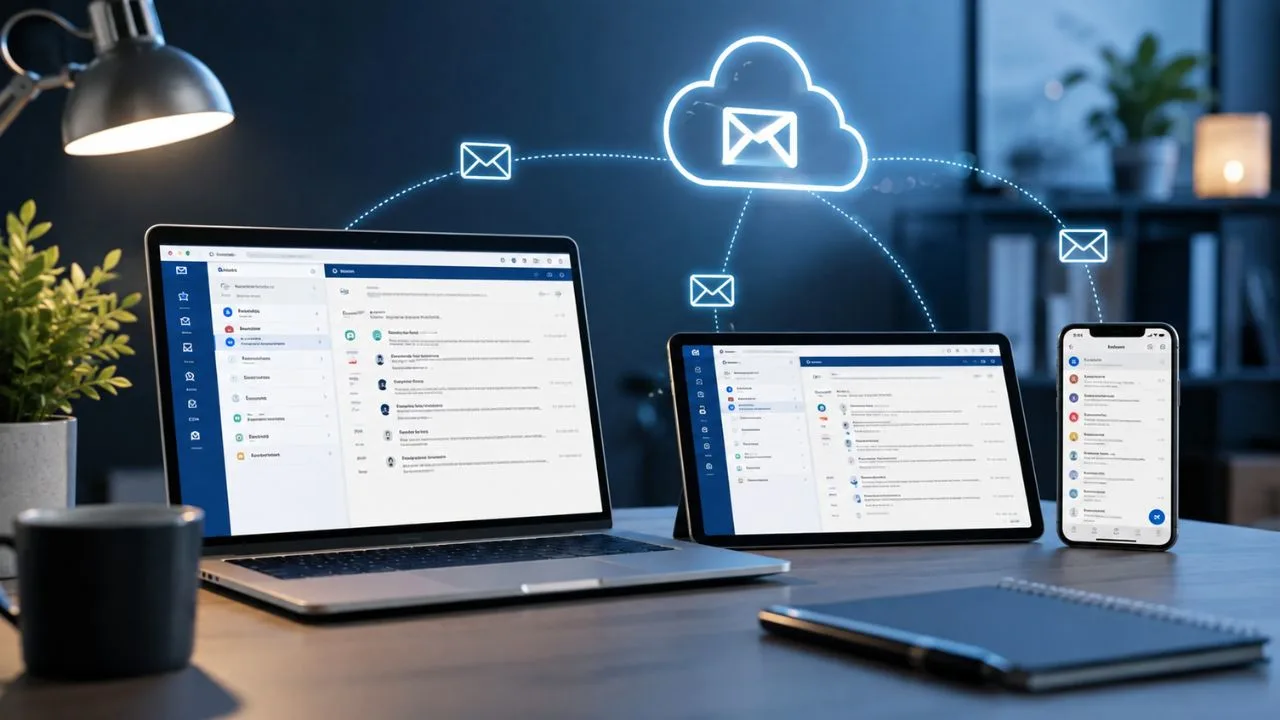

What Is an IMAP Account? A Simple Guide to Email Syncing
An IMAP account is an email account configured to use the Internet Message Access Protocol. IMAP allows you to read, organize, and manage messages stored on an email server through a phone, tablet, computer, or web-based email service. Changes made on one connected device usually appear on the others.
For example, when you read an email on your smartphone, it may also appear as read on your laptop. If you move the message into a folder, delete it, or mark it as important, the same change is synchronized with the email server. This consistent experience is the main reason IMAP is widely used.
IMAP is especially helpful for people who check the same mailbox from several devices. It keeps messages, folders, drafts, and status information connected to one central server instead of placing the only available copy on one computer. This makes email access more flexible and convenient.
Understanding how an IMAP email account works can help you configure a new mailbox, solve synchronization problems, and choose between IMAP and POP3. This guide explains IMAP in simple language and covers server settings, security, storage, sending email, and common setup mistakes.
What Does IMAP Mean?
IMAP stands for Internet Message Access Protocol. It is a standard set of communication rules that allows email applications to access and manage messages stored on a remote mail server. It is primarily used for receiving, viewing, organizing, and synchronizing incoming email.
The word “Internet” refers to the network through which the email application communicates with the server. “Message Access” describes the ability to open and manage stored messages. “Protocol” means the shared technical rules followed by both the email client and the server.
An IMAP account is not a separate type of email address. It is a method used to connect an existing address to an email application such as Apple Mail, Microsoft Outlook, Mozilla Thunderbird, Samsung Email, or another supported mail client.
Your email address may work through webmail without requiring manual IMAP configuration. However, when you add that same account to a third-party email application, you may need the correct IMAP server name, port number, encryption method, username, and password.
What Is an IMAP Account?
An IMAP account is a mailbox connected to an email application using IMAP settings. The messages normally remain stored on the email provider’s server, while the email app displays synchronized copies. This design allows several devices to access the same mailbox.
The account may be provided by a personal email service, internet provider, employer, school, web hosting company, or private mail server. As long as the provider supports IMAP, the address can usually be connected to compatible email applications.
Many email apps automatically detect the required configuration after you enter your address and password. In other situations, you may need to provide the incoming mail server manually. The server address often resembles “imap.example.com,” although every provider can use a different format.
The IMAP account controls incoming email access, but another protocol normally handles outgoing messages. SMTP, or Simple Mail Transfer Protocol, is commonly used to send email. This means one configured mailbox may use IMAP for receiving and SMTP for sending.
How Does an IMAP Account Work?
When you open your email application, it connects to the IMAP server and checks the state of your mailbox. The server provides information about available folders, new messages, read status, flags, attachments, and other mailbox details. The application then displays this information on your device.
When you open a message, the email app may download its content from the server. Depending on the application settings, it might download complete messages automatically or retrieve only headers and previews until you select a specific email.
Actions are sent back to the server. Marking a message as read, moving it into another folder, or deleting it changes the mailbox state stored online. Other connected devices receive the updated information when they synchronize with the same server.
This process requires an internet connection for full real-time access, although many applications keep selected messages available offline. Actions performed while offline may be saved temporarily and synchronized when the device reconnects to the internet.
How IMAP Syncs Email Across Devices
Email synchronization is the most important benefit of IMAP. The server acts as the central source of the mailbox, while phones, tablets, laptops, and desktop computers connect to that shared source. Each device displays an updated version of the same account.
Suppose you receive a customer message and read it on your phone. The IMAP server records that the email has been opened. When you later check the mailbox on a computer, the message should already appear as read instead of looking new again.
Folders can also remain synchronized. A folder created through one email application may appear on other connected devices after synchronization. Messages moved into categories such as Work, Invoices, Clients, Personal, or Follow Up remain organized across the entire account.
Synchronization speed depends on the provider, application, internet connection, and device settings. Push notifications may provide near-instant updates, while some applications check for new messages at scheduled intervals. Battery-saving features may also delay background email synchronization.
What Is an IMAP Server?
An IMAP server is the remote system that stores email and responds to requests from connected mail applications. It authenticates the account holder, provides mailbox information, delivers requested messages, and records changes made through authorized devices.
The incoming server address is supplied by the email provider. Common formats include “imap.provider.com,” “mail.domain.com,” or another provider-specific hostname. Users should obtain the exact address from official account settings or their organization’s administrator.
The server also uses a port number to identify the correct email service. Secure IMAP connections commonly use port 993 with SSL or TLS encryption. Port 143 may also be available, sometimes with STARTTLS, depending on the provider’s configuration.
An incorrect server address or port can prevent the account from connecting. Users may see messages such as “Cannot connect to server,” “Authentication failed,” or “Incoming mail server not responding.” Confirming the official IMAP server settings is usually the first troubleshooting step.
IMAP Settings You May Need
The first required detail is normally the incoming mail server hostname. This tells the email application which system should provide the mailbox. The exact value depends on the provider, domain, workplace, hosting account, or email service being used.
You will also need a username. In many cases, the username is the complete email address rather than only the part appearing before the @ symbol. Entering an incomplete username is a common reason an otherwise correct IMAP setup fails.
The account also requires authentication, usually through a password, app-specific password, or secure sign-in page. Some providers no longer allow ordinary account passwords in older email applications and require modern authentication or a specially generated application password.
Finally, the configuration needs a port and encryption choice. Port 993 with SSL/TLS is commonly recommended for secure IMAP. Users should follow the provider’s instructions rather than guessing because an incorrect security method can prevent the connection or expose login information.
Is IMAP Used to Send or Receive Email?
IMAP is mainly used to receive, access, and organize email stored on a server. It allows an email application to display the inbox, download message content, synchronize folders, and update actions such as reading, moving, flagging, or deleting messages.
IMAP does not normally deliver outgoing email to recipients. Sending is handled by SMTP, which stands for Simple Mail Transfer Protocol. An email application therefore needs both incoming and outgoing server details when the provider does not configure them automatically.
The outgoing server may require a different hostname, port, and security setting from the IMAP server. Secure SMTP commonly uses port 465 or 587, although the correct choice depends on the provider. Authentication is usually required to prevent unauthorized sending.
A mailbox can sometimes receive messages successfully while failing to send them. This often means the IMAP settings are correct but the SMTP settings are incomplete or incorrect. Checking the outgoing server authentication, username, password, port, and encryption can resolve the problem.
IMAP vs. POP3: What Is the Difference?
IMAP and POP3 are both used to retrieve email, but they manage messages differently. IMAP keeps the main mailbox on the server and synchronizes its status across connected devices. POP3 traditionally downloads messages to a device and may remove them from the server.
IMAP is generally better for people who use several devices or want their folders and message status to remain consistent. Reading, moving, or deleting an email on one device is reflected throughout the account after synchronization.
POP3 can be useful when someone wants to download messages to one computer for local storage. However, it may create confusion when the same account is accessed from multiple devices because each device can hold a different set of downloaded messages.
Modern POP3 applications may offer an option to leave copies on the server, but they still do not usually synchronize folders and actions as completely as IMAP. For most everyday personal and business email use, IMAP provides a smoother multi-device experience.
IMAP vs. Webmail
Webmail allows you to access email through a browser by signing in to a website. The browser communicates with the provider’s systems and displays the mailbox without requiring a separate desktop or mobile email application.
IMAP allows a dedicated email client to connect to the same mailbox. The application may combine accounts from several providers, provide offline access, offer advanced organization features, or integrate email with calendars, contacts, and productivity tools.
Both methods can access messages stored on the provider’s server. You might use webmail from a public computer and an IMAP application on your personal phone. Changes should remain synchronized because both methods are managing the same central mailbox.
Webmail may be easier when you do not want to configure server details. An IMAP email client may provide a more customized experience and quicker access to several accounts. The better option depends on your devices, workflow, security needs, and personal preference.
Benefits of Using an IMAP Account
The biggest advantage is consistent email access across multiple devices. You can begin reading a message on a phone, continue on a laptop, and reply from a tablet without manually transferring anything. The mailbox state follows the account rather than one physical device.
IMAP also keeps server-side folders synchronized. This is valuable for professionals who organize messages by client, project, date, department, or priority. The same filing system can remain available in different email applications, although some folder names may vary.
Because messages remain on the mail server, losing one device does not necessarily mean losing the entire mailbox. You can sign in from a replacement device and synchronize the available messages again. Reliable server storage therefore adds convenience and continuity.
IMAP can also reduce local storage use when the application downloads only recent messages, previews, or selected attachments. Users may adjust synchronization settings to balance offline access with available device space, especially on phones with limited storage.
Limitations of an IMAP Account
IMAP depends heavily on the mail server. If the server is unavailable or the internet connection fails, new messages may not synchronize. Previously downloaded emails may remain accessible offline, but the application cannot retrieve current mailbox changes until connectivity returns.
Server storage can also become a limitation. Because email remains stored online, large attachments and years of messages may fill the account quota. Once the mailbox reaches its limit, the user may be unable to receive new messages until space is cleared or increased.
Deleting a message through one synchronized device may remove it from other devices as well. This behavior is expected because every application is working with the same server mailbox. Users should understand trash, archive, and retention settings before removing important email.
Synchronization can occasionally create duplicate folders, delayed updates, or conflicts between applications. These problems may occur when several clients use different folder mappings or when one application has outdated settings. Reconfiguring the account or adjusting folder subscriptions can often help.
Is an IMAP Account Secure?
IMAP can be secure when the connection uses modern encryption and strong account authentication. Secure IMAP normally protects information with SSL or TLS while it travels between the email application and server. This reduces the risk of login details and messages being intercepted.
A secure connection does not protect an account with a weak or reused password. Users should create a unique password and enable multifactor authentication when the provider supports it. A password manager can help generate and store strong login credentials.
Some email services require app-specific passwords for applications that cannot complete modern sign-in methods. These passwords should be created only through the provider’s official account settings. They should be removed when the application or device is no longer used.
Users should avoid accepting unexplained certificate warnings or entering credentials into unknown setup pages. They should also keep email applications and operating systems updated. An outdated client may contain security weaknesses or lack support for the provider’s latest authentication requirements.
How to Set Up an IMAP Account
Open the account settings inside your chosen email application and select the option to add a new email account. Enter the complete email address and follow the automatic setup process first. Many popular providers can be detected without manual server configuration.
When automatic setup fails, choose manual or advanced configuration and select IMAP as the incoming account type. Enter the official incoming server hostname, username, password or app password, secure port, and required SSL/TLS option.
Next, enter the outgoing SMTP settings. These normally include the SMTP server address, secure port, authentication requirement, username, and password. Using the same login details as the incoming server is common, but the provider’s instructions should always take priority.
Save the configuration and allow the application time to connect and synchronize. Send a test email to another address and reply to it to confirm both incoming and outgoing communication. Also check whether inbox folders, sent messages, drafts, and deleted items appear correctly.
How to Find Your IMAP Server Settings
Start by checking the official help pages or account settings provided by your email service. Search within the provider’s documentation for terms such as IMAP settings, incoming mail server, manual configuration, or email client setup.
Business and school accounts may use custom configurations that are not listed publicly. In that situation, contact the IT department, email administrator, or hosting provider. Avoid copying settings from an unrelated domain because similar-looking email addresses may use different servers.
Some webmail platforms display connection information inside a settings area. Look for sections named forwarding, POP and IMAP, mail clients, connected devices, synchronization, or account access. IMAP may also need to be enabled before an external application can connect.
Existing configured devices can sometimes show the server hostname and port, but they may hide the password for security. Confirm the information before changing anything. Removing a working account without knowing the correct credentials can make reconnection more difficult.
Common IMAP Problems and How to Fix Them
An “authentication failed” message usually indicates an incorrect username, password, or sign-in method. Confirm that the full email address is being used and test the password through official webmail. Multifactor authentication may require an app password or browser-based authorization.
A connection error may result from an incorrect server name, port, or encryption setting. Compare every value with the provider’s official instructions. Security software, network restrictions, or a temporary provider outage may also prevent the mail application from reaching the server.
When messages are not synchronizing, refresh the mailbox and check whether background sync is enabled. Battery-saving modes, mobile data restrictions, limited synchronization periods, and disabled push notifications can delay new email on smartphones and tablets.
Missing folders may be caused by unsubscribed IMAP folders or incorrect folder mapping. Review the application’s folder settings and confirm that sent, draft, archive, spam, and trash folders point to the correct server locations. Re-adding the account may rebuild the folder list.
Why Is My IMAP Account Asking for a Password?
An email application may request the password again after it expires, changes, or becomes invalid. This can happen when the user updates the account password through webmail but the old login remains stored inside the connected application.
The provider may also have revoked the existing session for security reasons. Suspicious login activity, a new device, an application update, or changes to multifactor authentication can require the account holder to sign in again.
Older applications may repeatedly ask for a password because they do not support the provider’s current authentication system. Updating the mail client or creating an approved app-specific password may resolve the issue without weakening account security.
Users should make sure the request comes from the real email application rather than a fake pop-up or phishing page. When uncertain, close the prompt and sign in through the provider’s official website to review account activity and security notifications.
Does IMAP Store Email on Your Device?
The primary mailbox is normally stored on the email server, but the application may keep local copies of messages. These copies improve performance and allow users to read selected email while offline. The amount stored locally depends on the application settings.
Some clients download complete messages and attachments, while others initially store only sender names, subjects, dates, and short previews. Older content may be downloaded only when the user searches for or opens it.
Removing the IMAP account from a device may delete its locally cached copies, but the messages should remain on the server unless they were previously deleted from the mailbox. Signing in again can restore synchronized content that still exists online.
Server storage should not be treated as a complete backup strategy. Messages may be deleted accidentally, removed by retention policies, or lost through account compromise. Important business or legal records may require separate backup and archiving controls.
Can You Use IMAP on Multiple Devices?
Yes, IMAP is specifically suited to accessing one email account from multiple devices. A phone, desktop computer, laptop, and tablet can all connect to the same mailbox, provided that the provider allows the required connections.
Each device should use the same incoming server details and valid account credentials. Folder names, notification behavior, signature settings, and local storage preferences may differ because those features can be controlled separately by each email application.
Using many older or inactive devices may create security and management problems. Review connected devices regularly and remove access for computers or phones that have been sold, lost, replaced, or shared with another person.
Organizations may limit the number or type of devices allowed to access business email. Device management policies can require encryption, screen locks, current software, remote wiping, or approved applications before an IMAP connection is permitted.
When Should You Choose IMAP?
Choose IMAP when you regularly access email from more than one device. It keeps the inbox, folders, read status, and message actions synchronized, reducing confusion between phone, desktop, and browser-based access.
IMAP is also appropriate when you want messages stored centrally by the provider. This makes it easier to replace a device or add a new application without manually copying the entire mailbox from an old computer.
Business users often benefit from IMAP because it supports consistent organization and flexible access. However, companies should confirm that the service meets their security, retention, backup, compliance, and device-management requirements.
POP3 may still fit a limited workflow in which one computer downloads and permanently archives messages locally. For most modern personal and professional use, however, the synchronization and multi-device support offered by IMAP are more practical.
Final Thoughts on IMAP Accounts
An IMAP account is an email account connected through the Internet Message Access Protocol. It allows an email client to access messages stored on a server and synchronize mailbox changes across phones, tablets, computers, and other supported devices.
IMAP handles incoming mailbox access, while SMTP normally handles outgoing email. A complete manual configuration may therefore require separate incoming and outgoing server addresses, ports, encryption options, usernames, and authentication details.
The main advantages of IMAP include multi-device synchronization, server-based folders, flexible access, and reduced dependence on one computer. Its limitations include server storage quotas, reliance on internet connectivity, and synchronized deletions across connected devices.
For most people who check email in several places, IMAP provides a convenient and organized experience. Using official server settings, secure encryption, unique passwords, updated applications, and multifactor authentication helps keep that experience reliable and protected.
Frequently Asked Questions
What is an IMAP account in simple words?
An IMAP account is an email account that keeps messages on a server and synchronizes them across connected devices. Changes made on one device usually appear on the others.
Is Gmail an IMAP account?
Gmail supports IMAP access, allowing compatible email applications to connect to a Gmail mailbox. The account itself is a Gmail account that can use IMAP as a connection method.
What is the IMAP server password?
The IMAP password is usually your email account password or an app-specific password created by the provider. Never use a different password unless the official setup instructions require one.
What is the secure IMAP port?
Secure IMAP commonly uses port 993 with SSL/TLS encryption. Some providers may support port 143 with STARTTLS, so users should follow the provider’s official configuration instructions.
Should I use IMAP or POP3?
IMAP is generally better for multiple devices because it synchronizes messages and folders. POP3 may be suitable when email needs to be downloaded and stored mainly on one computer.