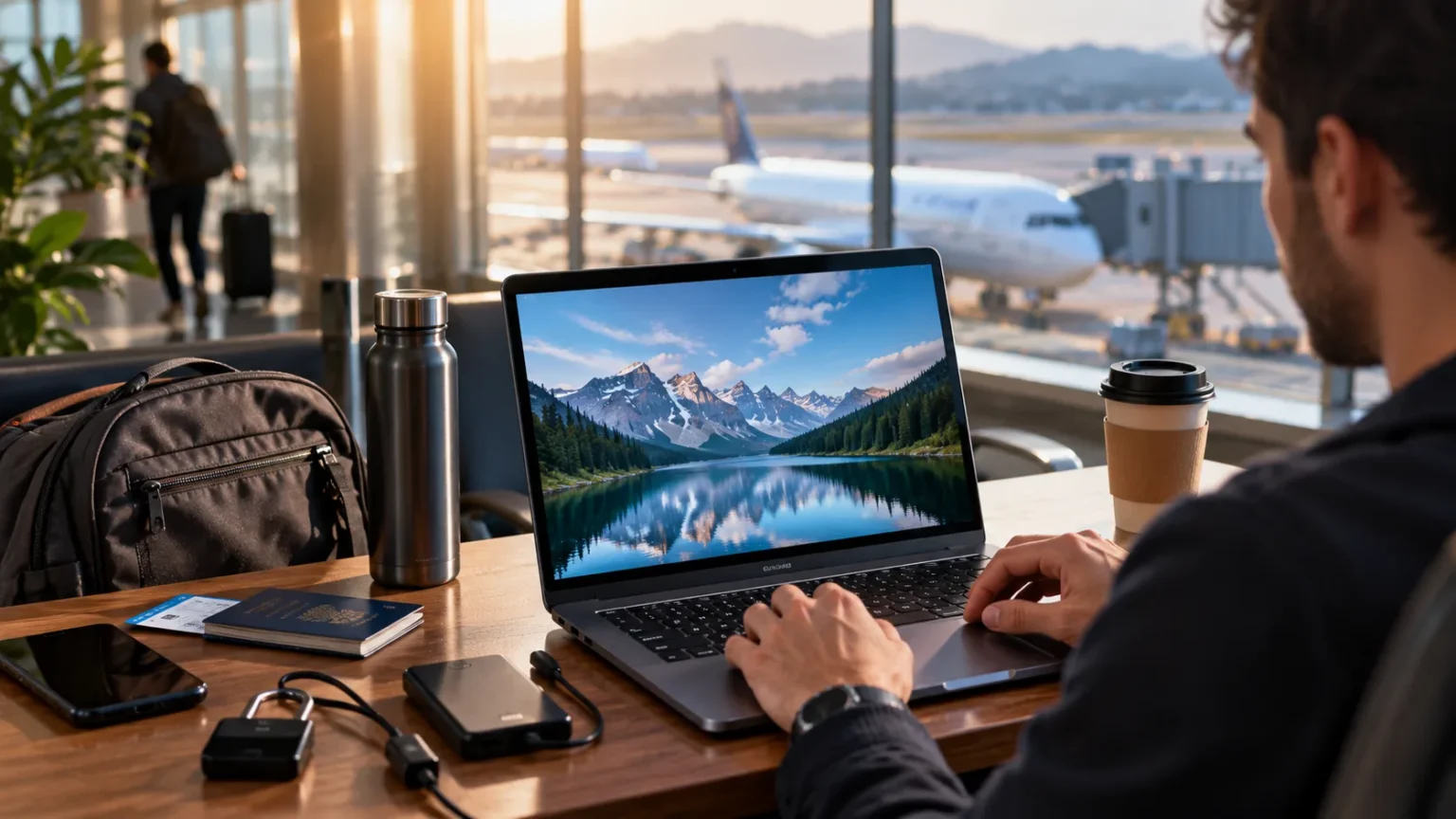

Traveling with a laptop makes it easier to work, study, communicate, and manage important tasks from almost anywhere. However, carrying a device through airports, hotels, cafés, coworking spaces, and public transportation exposes it to risks that may not exist at home. Theft, accidental damage, unsafe Wi-Fi, malicious software, and unauthorized access can all threaten your device and personal information.
The best travel laptop security combines physical protection with strong cybersecurity habits. A durable bag will not protect your passwords, while encryption alone cannot prevent a laptop from being damaged in transit. Preparing before departure and following a few practical habits during your trip can greatly reduce the risk of losing your device, files, accounts, or sensitive work information.
Prepare Your Laptop Before You Travel
Start by installing important operating system, browser, application, and security updates before leaving home. Updates often fix vulnerabilities that could otherwise be exploited while you connect to unfamiliar networks. Completing them before your trip also prevents large downloads or unexpected restarts from interrupting work when you have limited internet access.
Remove applications, files, and browser extensions you no longer need, especially if they contain sensitive information. The less unnecessary data stored on your laptop, the less information could be exposed if the device is lost or compromised. Organizing your system before traveling can also improve performance and make suspicious changes easier to notice.
Review your most important account recovery details as well. Make sure your recovery email addresses, phone numbers, authentication methods, and backup codes are current. If your laptop disappears while you are away, reliable recovery options can help you secure accounts quickly without depending on information stored only on the missing device.
Use a Strong Password and Automatic Screen Lock
Your laptop login password should be strong, unique, and difficult for another person to guess. Avoid birthdays, names, simple number sequences, or passwords already used on other websites. A strong login credential creates an important barrier if someone steals or briefly gains physical access to your computer.
Set the laptop to lock automatically after a short period of inactivity. Travelers often step away unexpectedly at airport lounges, hotel lobbies, conferences, or cafés, and an unlocked device can expose emails, files, and active accounts within seconds. Automatic locking protects you when you forget to manually secure the screen.
Biometric features such as fingerprint or facial recognition can make frequent unlocking easier while you travel. However, maintain a strong device password because biometric systems usually rely on it as a backup. Convenience should support security rather than encourage you to replace a strong password with something easier to type in public.
Enable Full-Disk Encryption
Full-disk encryption protects information stored on your laptop by making it difficult to read without the correct login credentials or recovery key. This becomes particularly valuable during travel because physical theft is one of the biggest risks. A thief may possess the device without automatically gaining readable access to the files inside it.
Many modern operating systems include built-in encryption options, although availability and configuration can vary by device. Check that encryption is actually enabled before your trip rather than assuming it is active by default. Store the recovery key securely somewhere separate from the laptop so you can regain access if authentication problems occur.
Encryption cannot prevent someone from stealing or damaging your laptop, but it can reduce the privacy impact of physical loss. It works best when combined with a strong password and secure account settings. Without strong authentication, even an encrypted device may remain vulnerable to someone who obtains or guesses the credentials needed to unlock it.
Protect Your Laptop From Physical Damage
Use a well-padded laptop sleeve or travel bag designed to protect the device from impact. Airports, buses, trains, and crowded luggage areas can expose electronics to drops, pressure, and sudden movement. A protective compartment keeps the laptop separated from hard objects such as chargers, bottles, and other items that could scratch or damage it.
Keep liquids away from the laptop whenever possible. Water bottles, coffee cups, and toiletries can leak inside bags and damage electronics even when the device is switched off. Use sealed containers and store liquids in separate compartments rather than placing them directly beside your computer and charging accessories.
Avoid packing your primary laptop in checked luggage when you have the option to keep it with you. Checked bags may experience rough handling, delays, loss, or theft. Keeping the computer in your personal or carry-on baggage gives you greater control and allows you to monitor the device throughout most of your journey.
Be Careful With Public Wi-Fi
Hotels, cafés, airports, and conference venues often provide convenient public Wi-Fi, but unfamiliar networks should be approached carefully. Attackers can create fake hotspots using names similar to legitimate networks. Travelers may connect without realizing that the access point does not actually belong to the location they are visiting.
Confirm the official network name with staff when necessary rather than selecting the first familiar option. Avoid installing certificates, applications, or unusual browser extensions simply because a Wi-Fi login page requests them. Sensitive tasks such as banking or major account changes may be safer through a trusted mobile connection when available.
Disable automatic connection to unfamiliar Wi-Fi networks so your laptop does not join nearby hotspots without your knowledge. When you finish using a public network, disconnect and remove it if you do not expect to need it again. These small steps give you more control over which networks handle your internet traffic during travel.
Protect Against Spyware and Malicious Downloads
Travel often involves downloading boarding passes, hotel documents, conference files, maps, and work attachments from unfamiliar networks. That increased activity can create opportunities for malicious downloads. Be careful with unexpected attachments, fake software updates, and pop-ups claiming that your laptop has a security problem requiring immediate action.
Understanding common spyware risks can also help you recognize unusual behavior before personal information is exposed. Spyware may attempt to monitor browsing activity, capture login details, or collect other sensitive information. Unexpected browser changes, unfamiliar applications, or unusual system behavior deserve further investigation.
Only download software from trusted sources and keep reputable security protection active. Avoid pirated applications, unknown travel utilities, and free programs from websites you do not recognize. A few minutes saved by installing questionable software can create much larger problems if it compromises your passwords, work documents, financial information, or private accounts.
Back Up Important Files Before Departure
Create a reliable backup before you leave home, especially if your laptop contains work projects, photographs, documents, or other irreplaceable data. Physical damage or theft can happen even when your cybersecurity is excellent. A backup ensures that losing the laptop does not automatically mean losing everything stored on it.
Consider maintaining both a cloud copy and a separate local backup when the information is particularly important. Multiple backup locations protect against different problems and give you more recovery options. Make sure the cloud backup account itself uses a unique password and stronger authentication so attackers cannot easily access or erase stored copies.
Test a few files before traveling to confirm that the backup can actually be restored. A backup that stopped working months ago may provide little protection during an emergency. Checking it before departure allows you to fix storage limits, account errors, or synchronization problems while you still have easy access to your normal setup.
Use Multi-Factor Authentication on Important Accounts
Multi-factor authentication adds another verification requirement beyond your password. This can make unauthorized access much harder if credentials are stolen through phishing, an unsafe network, or malicious software. Enable it on email, cloud storage, financial services, work accounts, password managers, and other services containing important information.
Authenticator apps, security keys, trusted-device prompts, and other supported methods can provide strong protection depending on the service. Keep backup codes somewhere secure in case your primary authentication device becomes unavailable during the trip. Do not store every recovery method only on the laptop you are trying to protect.
Never approve a login notification you did not initiate yourself. Repeated authentication prompts may indicate that someone already knows your password and is hoping you will approve access accidentally. Reject unexpected requests, review account activity, and change the password if you have any reason to believe the credentials were exposed.
Keep Your Laptop With You in Public Places
A laptop can disappear quickly in a busy airport lounge, café, train station, or hotel lobby. Avoid leaving it unattended on a table, chair, or charging station even for a short period. If you need to move away, take the laptop with you or secure it in an appropriate locked location.
Be mindful of your surroundings when working with confidential information. Someone sitting nearby may be able to see passwords, client data, financial details, or private messages displayed on your screen. Position the laptop carefully and consider a privacy screen when you frequently work in crowded environments.
Do not advertise that you are carrying expensive equipment unnecessarily. Bags with obvious technology branding may attract unwanted attention, while a simple professional backpack can be less noticeable. Physical security is often about reducing opportunities rather than relying on a single lock, tracker, or protective accessory to prevent every possible theft.
Secure Your Laptop in Hotels and Temporary Accommodation
Hotel rooms can feel private, but travelers should still protect valuable electronics when leaving the room. Use an available secure storage option when it is appropriately sized and trustworthy, or keep the device in a less obvious secure location. Do not leave a laptop openly displayed near windows, desks, or doors when you are away.
Log out of sensitive work systems when they are not needed, especially if other people may enter your accommodation. Housekeeping, maintenance staff, roommates, or visitors do not necessarily pose a threat, but reducing unnecessary access is sensible. Lock the laptop even when stepping away briefly inside a shared apartment or rental property.
Keep chargers, adapters, and important accessories organized in one place so they are easier to account for when leaving. Travelers often lose equipment simply because items become scattered around unfamiliar rooms. A consistent packing routine can reduce accidental loss and make it easier to notice immediately when something important is missing.
Know What to Do If Your Laptop Is Lost or Stolen
If your laptop disappears, act quickly rather than assuming it will eventually be returned. Use any enabled device-location or remote-management features when appropriate, and report the loss to relevant local authorities, transportation providers, hotels, or your employer. Work devices should usually be reported to the organization’s IT or security team immediately.
Change passwords for sensitive accounts if you believe saved sessions or credentials could be exposed. Prioritize email, password managers, financial services, cloud storage, and workplace systems. Signing out active sessions remotely can also prevent someone who gains access to the laptop from continuing to use accounts that were already logged in.
Monitor important accounts for unusual activity afterward. A stolen laptop may be valuable not only for the hardware but also for the information and access it contains. Encryption, strong passwords, multi-factor authentication, and reliable backups can greatly reduce the damage when these protections were configured before the device went missing.
Create a Simple Travel Security Routine
Laptop security becomes easier when you follow the same routine throughout every trip. Before leaving accommodation, confirm that the laptop, charger, storage devices, and authentication tools are packed. When arriving somewhere new, check the network carefully, keep the screen locked when unattended, and avoid unnecessary downloads from unfamiliar sources.
At the end of each travel day, make sure important new work has been backed up. Review unusual security alerts instead of dismissing them automatically, especially after using several public networks. Consistent habits reduce the chance that exhaustion, rushing, or unfamiliar surroundings will cause you to overlook an important security step.
After returning home, remove public Wi-Fi networks you no longer need and review account activity for anything unexpected. Install pending updates and confirm that backups completed properly during the trip. A short post-travel security check helps you catch potential problems before you return completely to your normal routine.
Conclusion
Protecting your laptop while traveling requires both physical care and cybersecurity awareness. Use a protective bag, keep the device with you, enable encryption, set a strong password, and lock the screen whenever you step away. These simple precautions can reduce the risks created by theft, accidental damage, and unauthorized physical access.
Your online habits matter just as much. Avoid suspicious Wi-Fi networks, keep software updated, use multi-factor authentication, and be careful with unexpected downloads or phishing messages. Backing up important files before departure also ensures that a lost or damaged laptop does not become a permanent data-loss problem.
The strongest travel security routine is one you can follow consistently without making every trip stressful. Prepare the device before leaving, stay aware in public places, and know how to respond if something goes wrong. A few practical precautions can protect your laptop, personal information, accounts, and important files wherever your journey takes you.
FAQs
What is the safest way to carry a laptop while traveling?
Keep the laptop in a padded carry-on bag or protective sleeve and avoid checked luggage when possible. Keeping the device with you reduces exposure to rough handling, loss, and unnoticed theft.
Is public Wi-Fi safe for my laptop?
Public Wi-Fi can be used carefully, but unfamiliar or fake networks may create security risks. Verify network names, avoid unusual installation requests, and consider a trusted mobile connection for sensitive activities.
Should I encrypt my laptop before traveling?
Yes, full-disk encryption can protect stored information if your laptop is lost or stolen. Combine encryption with a strong password and securely store the recovery key somewhere separate from the device.
What should I do if my laptop is stolen abroad?
Report the theft, notify your employer if relevant, use remote security features, change important passwords, and sign out active sessions. Monitor sensitive accounts afterward for unexpected logins or changes.
Should I back up my laptop before every trip?
Yes, especially before major travel. A recent backup protects important documents, photos, and work files if the laptop is stolen, damaged, lost, or compromised while you are away.